Optimize every image on a web page at once

Paste the URL. Iminify opens the page in a real browser, collects every image it loads, runs them all through the same compressor as the upload tool, and gives you one zip to put back. No plugin, nothing installed on your site. Free with an account.

  • One URL in, one zip out
  • Same compressor, same levels
  • Reads your page, never writes to it
  • Same file names, ready to put back
Compression Level
None
No compression, only apply settings on image
Lossless
Without any visual change in the image quality
Ultra
Max compression with some quality loss
Smart
Balance between the image quality and compression
Change Format Will allow you to convert images to different extensions
Auto WEBP AVIF PNG JPG Auto tries every format your image can be saved as and gives you the smallest one
Resize Will allow you to change the width, height or scale of images
Keep EXIF Will allow you to preserve meta data in images
Page URL Iminify opens the page in a real browser, scrolls to the end and collects every image it loads: lazy-loaded pictures, CSS backgrounds and images on other domains included.
Create a free account to scan

Page scans come with a free account: 3 a day, up to 20 images each. Already have one? Sign in.

Maximum file size is 16 MB per image and supported formats are: PNG, JPG, JPEG, WEBP, GIF, HEIC, HEIF, TIFF, TIF
Delete this image?
The image and its optimized copy will be removed from storage. This cannot be undone.

Rename this image
Choose the name the optimized image downloads with. Its format stays the same.

Uploaded as

Rename the selected images
Each image gets this name and a number, counted in the order they were uploaded. Their formats stay the same.

Share this image
Delete this scan?
The scan and every image it found will be removed from storage. This cannot be undone.

Choose the compression level that suits your images
Level What it promises What happens Pick it when
Lossless
Not one pixel changes in a JPEG, PNG or GIF The file is repacked, never re-encoded. JPEGs get an optimised Huffman table and progressive scan, PNGs a tighter deflate pass, GIFs a lossless gifsicle run. A lossy WebP has no repack step, so it is re-encoded at the highest quality the level allows. A sideways phone JPEG is rotated losslessly on the way through and keeps its colour profile. The one exception to the promise is a PNG or WebP tagged with a wide-gamut profile such as Display P3: its colours are converted to sRGB, so the values change but the picture doesn't. Logos, line art, anything you'll edit again, or when the file is evidence.
Smart
No visible change, targets 40 dB PSNR and a perceptual score of 70 A quality search runs per image and stops at the lowest quality that still clears the PSNR target. That answer is then scored on the SSIMULACRA 2 scale, because an average over every pixel lets a mostly flat picture through at a quality its detail doesn't deserve, and when it falls under 70 the search moves back up until it doesn't. Photos and graphics end up at different qualities because they need different ones; an image that cannot reach the targets inside the quality ceiling is encoded at the ceiling. Almost everything on a website. This is the default for a reason.
Ultra
Smallest file, targets 34 dB PSNR and a perceptual score of 50 The same two-stage search with lower targets. Fine texture softens a little; edges and text stay sharp. Thumbnails, backgrounds, email images, anything shown small or blurred anyway.
None
No compression at all Only the resize, conversion or metadata setting you chose is applied. An untouched upload comes back byte for byte. You only wanted to resize or convert, and quality is someone else's decision.

Before and after

See it on real images before you upload yours

Every image a scan collects goes through this exact pipeline. These 10 samples were run at every level and every format, with nothing tuned by hand. Drag the handle, put the two side by side, or switch to Difference and see every pixel that moved, with the PSNR. Then change the level and the format and read the numbers off the results.

Best result so far: 97.2% smaller, Ultra level, AVIF.

All 10 samples at Smart, same format: 3.89 MB in, 1.45 MB out, 62.7% smaller overall.

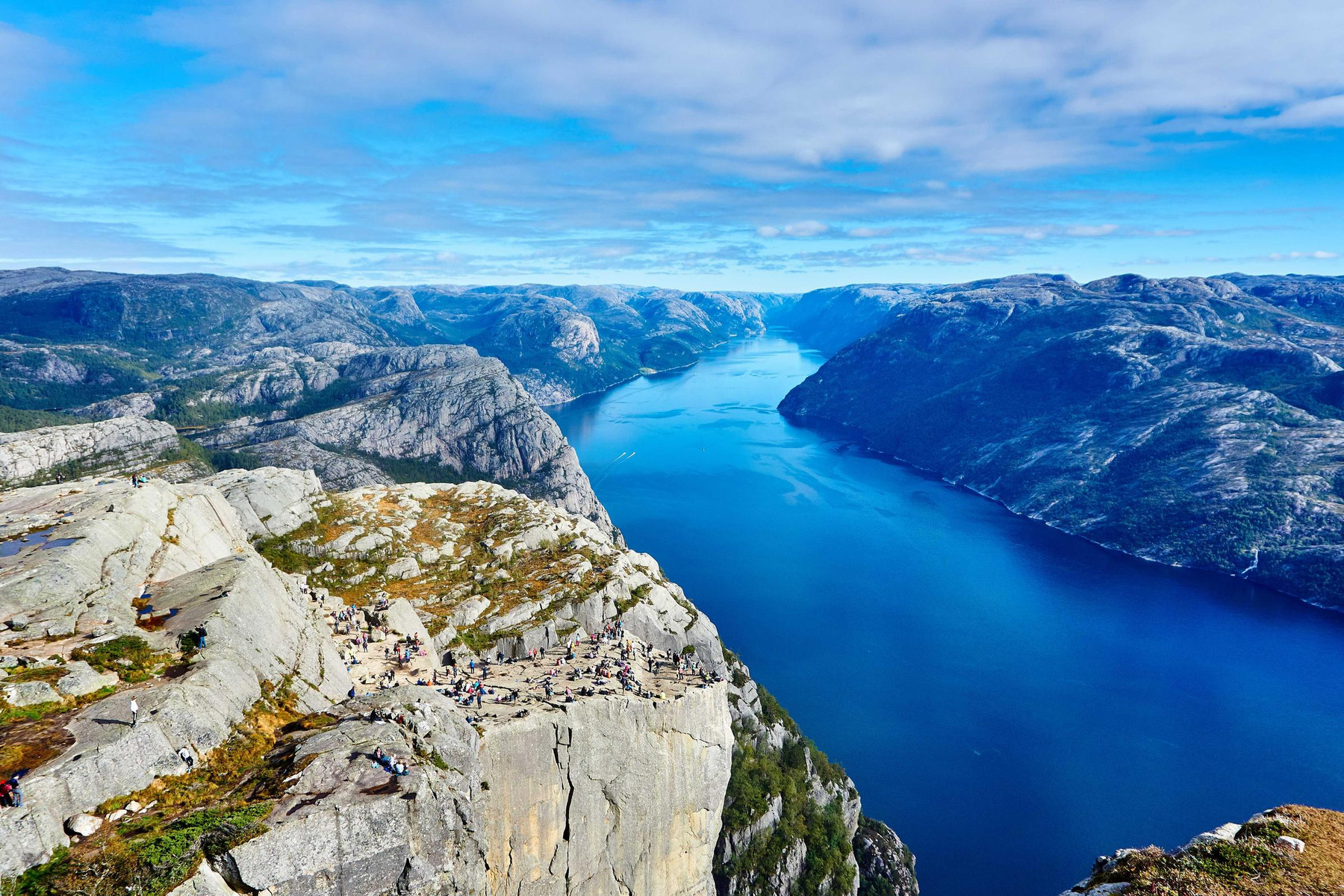
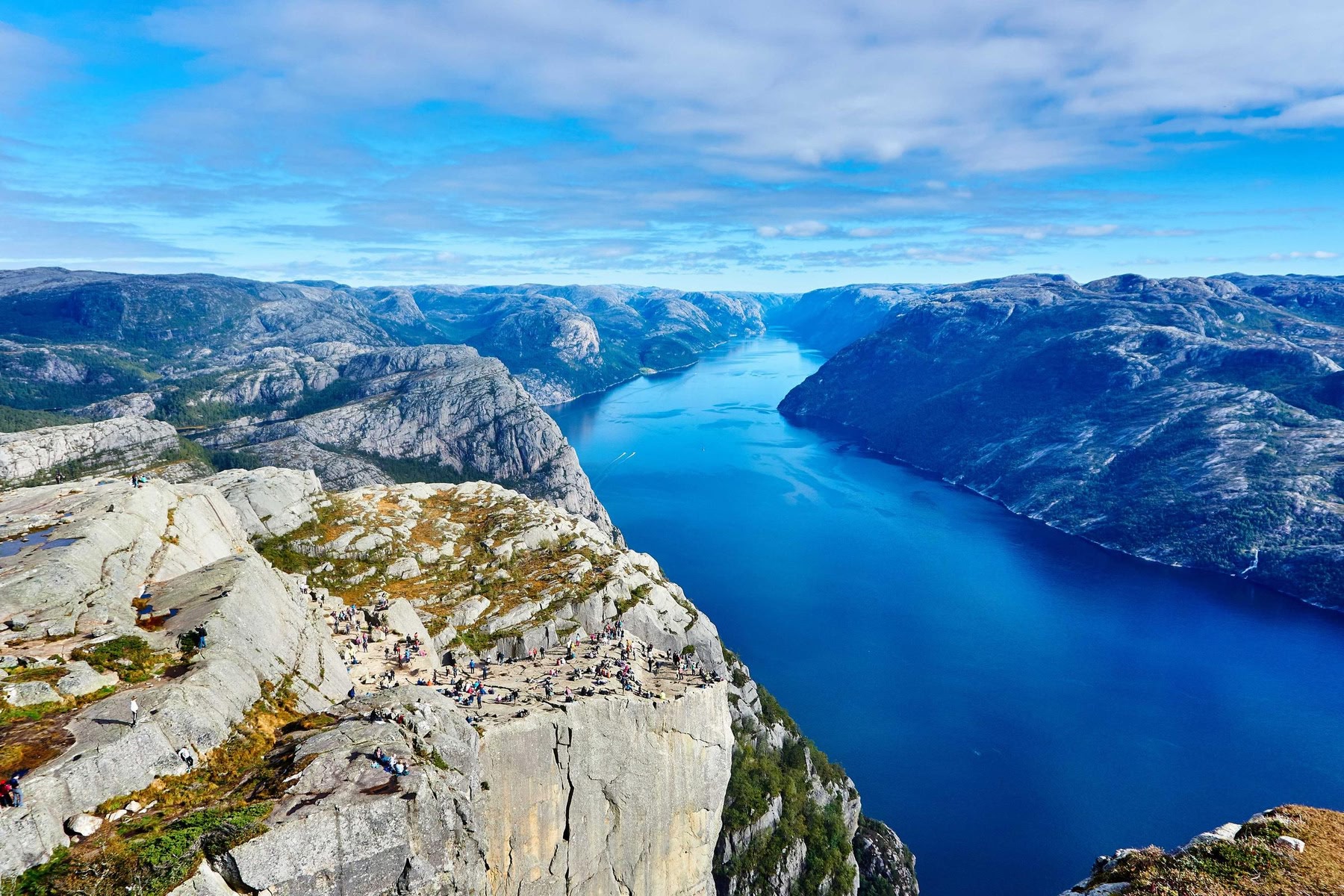
Fjord, from a camera

Rock, water and sky at 1800 by 1200, saved the way a camera saves it: quality 92, full chroma. Fine texture everywhere, which is where lossy encoders spend their bytes.

Level
Output format
Compare
Original Optimized
Original · ·
Optimized
Drag to compare
Original

Original

Optimized

Optimized

Comparing every pixel
The difference couldn't be computed in this browser.
Same Changed

Brighter means a bigger change. Over 40 dB is hard to tell apart by eye; under 30 dB shows at a glance.

Look the same? Good, that's the job. And no, we didn't put the same picture on both sides: the only difference you're supposed to see is the file size.

The map and its numbers are computed in your browser from the two files on screen, the way the compare view on a result of your own does it. Smart aims at 40 dB and Ultra at 34 when it writes a JPG, WebP or AVIF, then holds the result to a perceptual score as well (70 for Smart and 50 for Ultra on the SSIMULACRA 2 scale, which the map can't show), and a result under its PSNR target stopped at the level's quality ceiling rather than grow the file; a PNG is quantised to fewer colours instead, with no target. Lossless comes out identical except where a file has to be re-encoded, a JPEG converted to another format or a lossy WebP, and there it gets the level's top quality.

Original
Optimized

Every result for this image

Same format WebP AVIF
Lossless
Smart
Ultra

What a scan does

Exactly what happens after you press Scan

A scan is not a crawler and it is not a plugin. It opens one page in a browser the way you would, waits for it to load, scrolls to the bottom, and collects every image along the way. Here is the whole sequence.

  1. 1

    Open the page in a real browser

    Iminify loads the URL in headless Chrome, scripts and all, then scrolls to the end so lazy-loaded pictures get requested too. Nothing is written to your server.

  2. 2

    Collect every image the page shows or loads

    Every img and each size in its srcset, picture sources, video posters, CSS backgrounds, and anything a script added after the page loaded. If the browser fetched it, the scan saw it. Duplicates are removed.

  3. 3

    Download each one the way a browser would

    Each image is fetched with your page as the referrer, so hotlink protection lets it through, and identified by its bytes rather than its file extension. Images on other domains are kept too: a CDN, a storage bucket, an embed, all of it.

  4. 4

    Compress each one with your settings

    Level, format, resize and EXIF apply to every image the scan found. Each is queued on its own, so one huge file doesn't hold up the rest.

  5. 5

    Download the set as one zip

    The results table shows every image with its original size, new size and saving, and each row has the menu an upload gets: compare it with the original, compress it again with other settings, rename it, share it. Tick the ones you want and download a zip with the original file names, ready to upload back.

When to scan

Scan when the images are already live

The upload tool is for images you have on disk. The scanner is for the ones you only have on a website.

You inherited a site

A client or a previous developer built it, the media folder is a mess, and PageSpeed keeps flagging "Properly size images". Paste the slowest page and see what it weighs.

Your CMS uploads full-size originals

WordPress, Shopify and most page builders store whatever the editor dropped in, 5 MB phone photos included. A scan pulls the versions the page actually serves.

You want a before-and-after you can show someone

Total original size, total optimised size and the saving, per page, in a table. Useful for a handover, a proposal or a performance ticket.

You need the images in a new format

Turn on Change Format and every image on the page comes back as WebP or AVIF, or whichever is smaller with Auto, in one download.

Prefer to ask? Claude, ChatGPT and Cursor can scan a page and compress its images for you through Iminify's MCP server. See how

Guest, account or Pro

Compress without an account, sign up for more, or go Pro and forget the caps

No trial and no card to start. A guest gets 10 images a day and a history that lives in this browser. A free account raises that to 40, opens the page scanner and keeps your history with your account for as long as you have one. Pro takes the daily caps away, raises the size limit to 90 MB and puts your uploads ahead of the queue, from $3 a month.

What you get
Guest

Drop a file, get it back. Nothing to fill in.

Free account
Free forever

One form and one email to verify, and the limits move.

Pro
No daily caps

$3 a month

billed $36 a year, 40% less than monthly

$5 a month

billed month to month, cancelled any time

For the days when 40 images are not enough.

Images a day 10 40 Unlimited
Page scans a day Not included 3 Unlimited
Images per scan Not included 20 150
File size 16 MB 32 MB 90 MB
Queue Standard Fast Fastest
Uploads a minute 10 20 60
History In this browser In your account In your account
All levels and formats Included Included Included
Smart quality per image Included Included Included
Auto format Included Included Included
Format conversions Unlimited Unlimited Unlimited
Resize, convert, keep EXIF Included Included Included
Batch upload, one zip Included Included Included
Compare, recompress, rename and share Included Included Included
API Not included Included Included
AI agents (MCP server) Not included Included Included
Watermarks and ads None None None
Start without an account Create a free account Go Pro

The daily counts reset 24 hours after your first image. Signing up takes a name, an email and a password, or one click with Google, GitHub, Microsoft or Apple, and the account stays free. Pro is paid by card, PayPal, Apple Pay or Google Pay, renews on its own and can be cancelled any time from your plan page. Payment methods and billing questions are on the pricing page.

Settings

One set of settings for the whole page

Everything you can choose for a single upload applies to every image a scan finds. The scan itself has nothing to set up.

No hunting for the images
Themes, plugins and page builders scatter pictures across folders and hosts, and you don't have to track any of that down. The page is loaded the way a visitor loads it, scripts running, and whatever it pulls in is what gets compressed.
One budget per page
A scan compresses up to 20 images from one page on a free account and 150 on Pro, and gives itself about ten minutes. 150 covers almost any page. A huge gallery is better scanned section by section.

Limits

What a scan will not find

  • Images on other pages. A scan reads the one URL you give it and does not follow links. Scan each page you care about.
  • Images behind a login or a cookie wall. The scan sees the page a first-time visitor sees, so anything that needs a session isn't there.
  • SVG and AVIF files, and anything above 32 MB or 64 megapixels. Those are skipped and the rest of the scan carries on.
  • Tracking pixels, and the same file under two addresses. A tracker isn't a picture, and a duplicate would only hand you a second copy.

Questions

Questions people ask before they scan

From the blog

What we've measured so far

We run the encoders on real photos and screenshots and publish the numbers: when WebP beats AVIF, what quality 80 means in each encoder, and how many kilobytes an image on a web page should weigh.

All posts
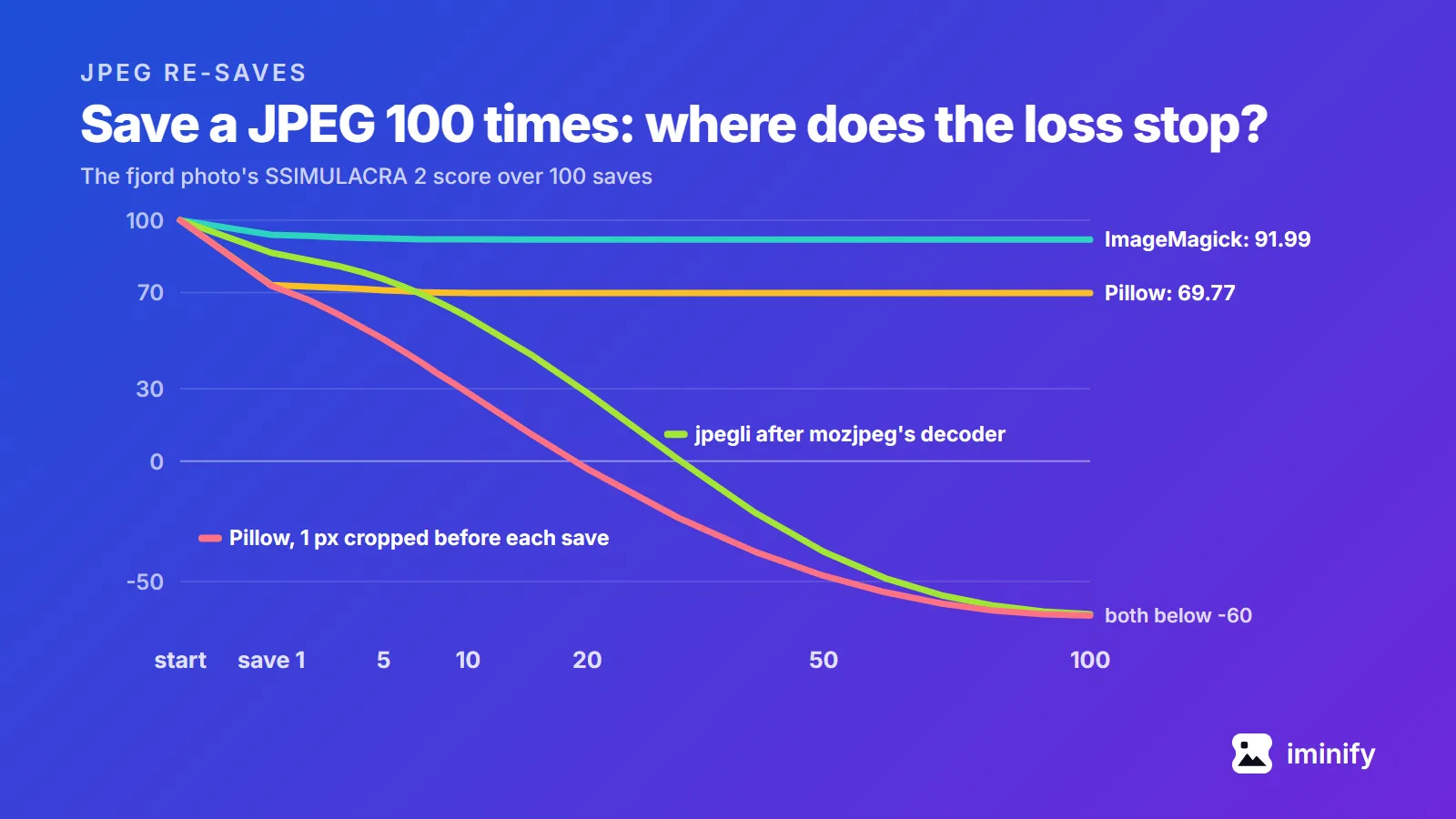
Line chart of the fjord photo's SSIMULACRA 2 score over 100 saves: ImageMagick levels off at 91.99 and Pillow at 69.77, while Pillow with 1 pixel cropped before each save and jpegli after mozjpeg's decoder both fall below -60.

Does a JPEG lose quality every time you save it? We saved five photos 100 times

Two of the tests that come up for this question disagree. Fstoppers opened a photo in Photoshop 2020 and saved it 99 times at maximum quality, and saw "significant quality loss after you save it six times". Improve Photography saved one 30 times at maximum quality, painting a pixel white each time, and found "no noticeable reduction in image quality. None." Both judged by eye. We opened a JPEG 100 times, copied it and zipped it, then saved five photos 100 times in a row in five programs and scored every save against the file we started from. The short answer: Opening, copying and zipping never changed a byte. In every same-setting run, no later save cost as much as the first. Saving again at the same setting, with no edits, then mostly stopped costing: at their defaults, by save 73, ImageMagick, Chrome and Pillow were writing identical files on all five photos, and mozjpeg on four. Cropping one pixel or turning the photo before each save kept eating it. One pairing of two JPEG libraries lost quality with every save: the jpegli encoder fed by mozjpeg's decoder. Iminify runs that pairing, so we tested our own tool too.
7 min read
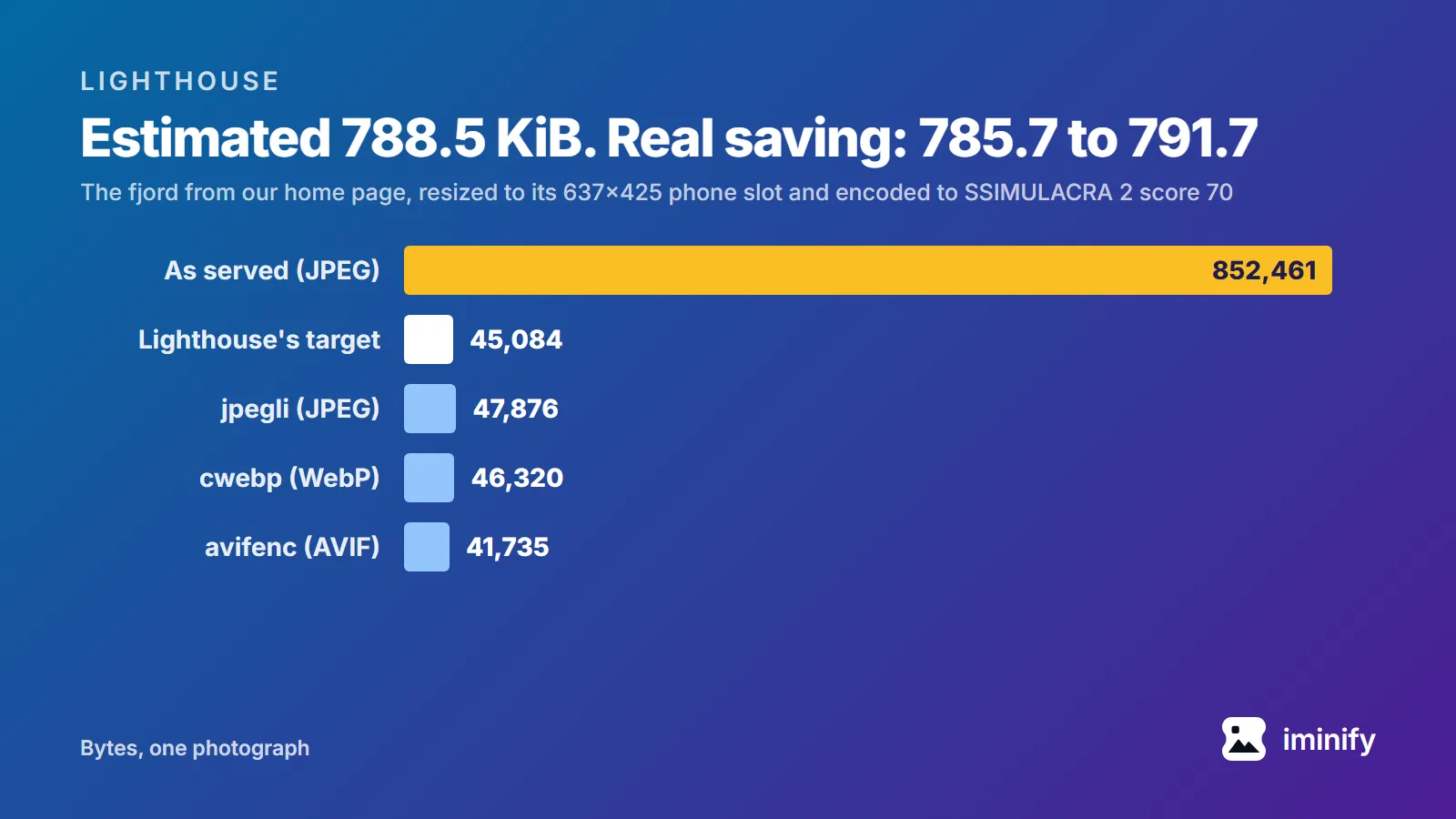
Bar chart of one photograph in bytes: 852,461 as served, against Lighthouse's target of 45,084 at its phone slot and encodes of 47,876 (JPEG), 46,320 (WebP) and 41,735 (AVIF).

Improve image delivery in Lighthouse: what it replaced and how it counts savings

PageSpeed Insights ran Lighthouse 13.5.0 on our home page on 22 September 2026 and flagged "Improve image delivery" in the mobile report: "Est savings of 1,300 KiB". All of it came from one photograph. The fjord shot in our before-and-after comparison is on the page twice, as the 832.5 KiB original and as our own compressed copy at 555.3 KiB. Both files are 1800x1200, and the report says they're displayed at 637x425. Three later runs that day said 1,359 KiB and 364x243. If your old notes say "Serve images in next-gen formats" or "Properly size images", this is where they went: Lighthouse 13 folded four image audits into this one insight. And its savings aren't measured: each figure is arithmetic on bytes and pixels. We reproduced every number in that insight, made the file it asks for, and traced one reason the same page gets two answers.

8 min read
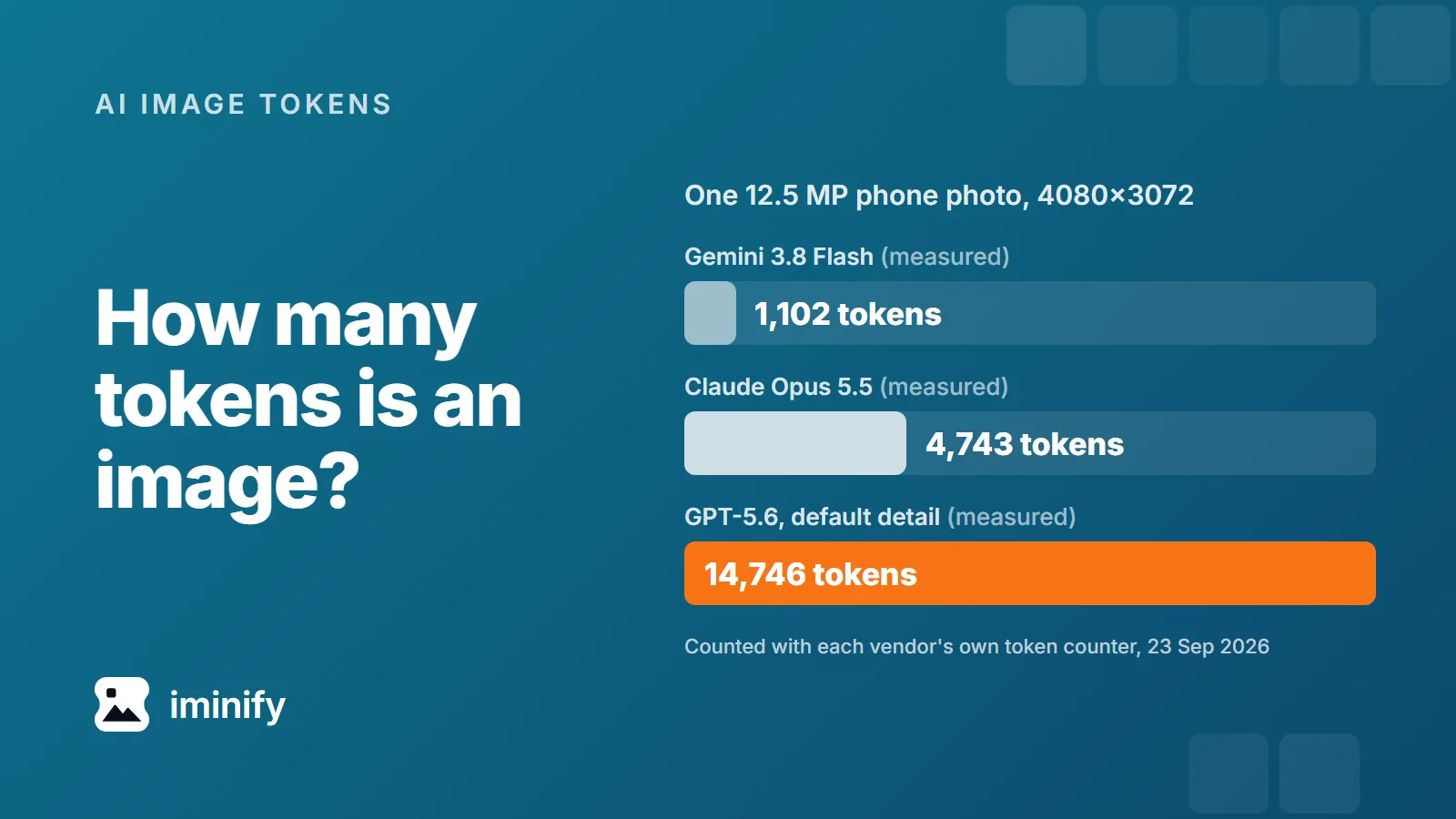
Bar chart for one 4080x3072 phone photo, measured with each vendor's token counter: 1,102 tokens on Gemini 3.8 Flash, 4,743 on Claude Opus 5.5 and 14,746 on GPT-5.6 at default detail.

How many tokens is an image? Claude, GPT and Gemini, measured on seven real files

A 12.5-megapixel phone photo counts 4,743 input tokens on Claude Opus 5.5, 1,102 on Gemini 3.8 Flash and 14,746 on GPT-5.6 at its default detail setting, over 13 times Gemini's count. We measured all three with the vendors' own token counters on 23 September 2026. And none of the three depends on how many bytes the file has. Claude counts pixels up to a cap, GPT-5.6 counts every pixel unless you ask for less, and Gemini 3 barely looks at the size.

7 min read

Paste the slowest page you own

Scroll up, drop in the URL and press Scan. The results table tells you within a minute how much that page was carrying.