Compress images to 200 KB

Drop your photos below and each comes back under 200 KB: one already sized for the web usually keeps every pixel, and a bigger one is made smaller when the lowest quality isn't enough. JPG is set because every form and CMS takes it; on your own site, AVIF gets the same photo there in fewer bytes. Up to 16 MB a file as a guest or 32 MB with a free account. Free. No account, no watermark.

  • JPG, WebP or AVIF
  • Full size where it fits
  • Quality chosen per photo

Balance between the image quality and compression

Output format

Auto tries every format your image can be saved as and gives you the smallest one

Resize

Change the width, height or scale of every image you upload

Original Dimensions Percentage
px
px

Set one side to keep the proportions, or both for an exact size.

Percentage
%

Size limit

Fit every image under a file size, for a form or a site with an upload limit

Any size Under a size
KB

Saved as JPG, WebP or AVIF. When quality alone can't get there, the image is made smaller to fit.

How the size limit works

Responsive image set

Pro

The image at several widths, with a srcset to paste into your page, so each screen loads the size it needs

One size Responsive set
px

Up to 8 widths, each in the format and at the level of the result. A width wider than the image stops at its own width, so nothing is enlarged.

How responsive sizes work

Keep EXIF Keeps details such as the camera, the date and the location in each file. Leave it off to remove them and save space.
Write alt text with AI Describes each image for screen readers and search engines, and suggests a file name
Alt text language
No language matches
English
Spanish
French
German
Italian
Portuguese
Dutch
Polish
Swedish
Turkish
Russian
Ukrainian
Arabic
Persian
Hebrew
Hindi
Indonesian
Vietnamese
Thai
Japanese
Korean
Simplified Chinese
Traditional Chinese
Rename files Downloads take the suggested name instead of the one you uploaded

Pro
Uploading a zip comes with Pro: the browser opens it and uploads its images in the folders they sat in, and the zip of the results keeps them. On your plan, unzip it and drop the images here. How folders and zips work

Up to 16 MB per image PNG, JPG, WEBP, GIF, HEIC, TIFF, or a ZIP of them on Pro

Guests get 10 images a day, 10 left today. A free account gets 40 a day and 7 days of Pro.

Upload a folder, or a zip

Pro

Pick a folder and every image in it uploads, with the folders inside it, and Download Selected gives them back in the same folders. A zip of images dropped on the box works the same way, opened in your browser.

How folders and zips work

Auto-start
On, each image starts compressing as soon as it uploads. Off, images wait in the box so you can check the settings, then start together.
Delete this image?
The image and its optimized copy will be removed from storage. This cannot be undone.

Rename this image
Choose the name the optimized image downloads with. Its format stays the same.

Uploaded as

Rename the selected images
Each image gets this name and a number, counted in the order they were uploaded. Their formats stay the same.

Share this image
AI alt text
Alt text

Paste it into the alt attribute of the image on your page.

Choose the compression level that suits your images
Level What it promises What happens Pick it when
Lossless
Not one pixel changes in a JPEG, PNG or GIF The file is repacked, never re-encoded. JPEGs get an optimised Huffman table and progressive scan, PNGs a tighter deflate pass, GIFs a lossless gifsicle run. A lossy WebP has no repack step, so it is re-encoded at the highest quality the level allows. A sideways phone JPEG is rotated losslessly on the way through and keeps its colour profile. The one exception to the promise is a PNG or WebP tagged with a wide-gamut profile such as Display P3: its colours are converted to sRGB, so the values change but the picture doesn't. Logos, line art, anything you'll edit again, or when the file is evidence.
Smart
No visible change, targets 40 dB PSNR and a perceptual score of 70 A quality search runs per image and stops at the lowest quality that still clears the PSNR target. That answer is then scored on the SSIMULACRA 2 scale, because an average over every pixel lets a mostly flat picture through at a quality its detail doesn't deserve, and when it falls under 70 the search moves back up until it doesn't. Photos and graphics end up at different qualities because they need different ones; an image that cannot reach the targets inside the quality ceiling is encoded at the ceiling. Almost everything on a website. This is the default for a reason.
Ultra
Smallest file, targets 34 dB PSNR and a perceptual score of 50 The same two-stage search with lower targets. Fine texture softens a little; edges and text stay sharp. Thumbnails, backgrounds, email images, anything shown small or blurred anyway.
None
No compression at all Only the resize, conversion or metadata setting you chose is applied. Without a resize or a conversion every pixel comes back as it was: the file only loses its metadata, and with Keep EXIF on it comes back byte for byte. You only wanted to resize or convert, and quality is someone else's decision.

Measured, not estimated

Five photos fitted under 200 KB

Our five showcase photographs fitted under 200 KB in three formats. Where a cell shows the full 1800 by 1200, the photo fitted on quality alone and kept every pixel.

Sample Original As JPG As WebP As AVIF
Fjord 1800 by 1200 832 KB JPG 195 KB 76.6% smaller 1800 by 1200 185 KB 77.8% smaller 1800 by 1200 181 KB 78.2% smaller 1800 by 1200
Canoe at dusk 1800 by 1200 387 KB JPG 125 KB 67.6% smaller 1800 by 1200 101 KB 74% smaller 1800 by 1200 71 KB 81.7% smaller 1800 by 1200
Raspberries 1800 by 1200 342 KB JPG 56 KB 83.7% smaller 1800 by 1200 60 KB 82.4% smaller 1800 by 1200 44 KB 87.2% smaller 1800 by 1200
Café interior 1800 by 1200 356 KB JPG 90 KB 74.6% smaller 1800 by 1200 80 KB 77.6% smaller 1800 by 1200 45 KB 87.3% smaller 1800 by 1200
Night skyline 1800 by 1200 427 KB JPG 181 KB 57.6% smaller 1800 by 1200 170 KB 60.1% smaller 1800 by 1200 146 KB 65.8% smaller 1800 by 1200

Sources are 1800 by 1200 JPGs at quality 92, fitted at Smart with metadata stripped. Smart never goes above its own quality ceiling, so a file well under 200 KB is what Smart wanted anyway.

A budget, not a target

Why 200 KB is a ceiling, not a goal

On a website, 200 KB for a large photo is a budget: the most you're willing to spend, not an amount to fill. So the level still decides the quality, and the limit only steps in when the level's own result is over 200 KB.

When it does, the fit lowers the quality toward the engine's lowest, and only then scales the photo down. That second step is for photos with more pixels than 200 KB can carry; the photos in the table, at about 2 megapixels, never needed it.

Lighthouse sets no byte limit of its own. It flags an image when a better format or a smaller size would save bytes, so a 200 KB JPG can still be flagged when a WebP or AVIF of the same photo would be smaller.

What survives

What a photo keeps under 200 KB

  • Every pixel, at web size

    A photo already sized for the web usually fits on quality alone, as every photo in the table did. A bigger one is made smaller only when even the lowest quality is over 200 KB.

  • Transparency, as WebP or AVIF

    Switch Format to WebP or AVIF and a PNG's transparent background survives. JPG has no transparency and places it on white.

  • Colours

    A wide-gamut or CMYK profile is converted to sRGB, so the photo looks the same in every browser.

  • Metadata, unless you ask

    EXIF is stripped by default. On a website that's what you want: a photo's GPS position shouldn't ship with your page.

When not to

When 200 KB is too much

  • The image is shown small, as a thumbnail or a card. Resize it to the size it's shown at instead: a 400 pixel card needs a fraction of 200 KB.
  • It's a logo or an icon. Those belong in PNG or SVG at a few kilobytes, not in a photo budget.

How to

Fit web photos under 200 KB in three steps

  1. 1

    Drop your photos

    A whole folder's worth if you like; each is fitted on its own.

  2. 2

    Pick the format

    JPG for a form or a CMS that takes nothing newer. AVIF or WebP under Format for your own site: in the table, AVIF came out smallest on every photo.

  3. 3

    Download them all

    One by one or as a zip. Each row says whether it came in under 200 KB as it was, or was made smaller to fit.

How the fit works, and how to ask for the same limit from code or an AI agent, is in the docs. Read the size limit guide

Questions

200 KB questions

Next

From the blog

What we've measured so far

We run the encoders on real photos and screenshots and publish the numbers: when WebP beats AVIF, what quality 80 means in each encoder, and how many kilobytes an image on a web page should weigh.

All posts
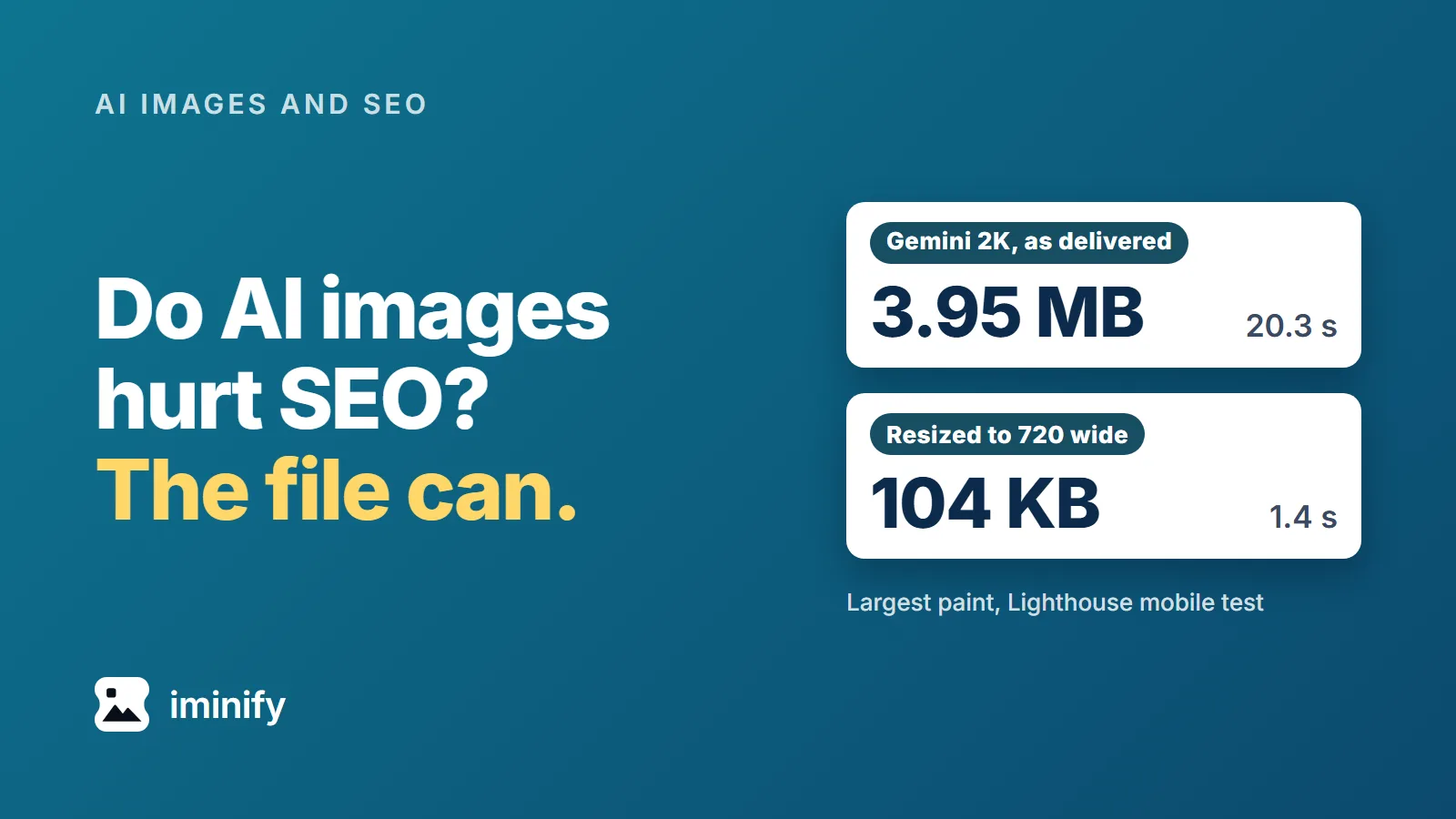
Two cards under the title "Do AI images hurt SEO? The file can.": a Gemini 2K picture as delivered, 3.95 MB, largest paint 20.3 s; the same picture resized to 720 wide, 104 KB, 1.4 s, in Lighthouse's mobile test.

Do AI images hurt SEO? What Google's pages say, and what a 2K Gemini picture did to a page

We put Gemini pictures on a plain article page, one size at a time, and ran Lighthouse's mobile test on each. Straight from the generator, the 1K file (1.06 MB) took 6.2 seconds to become the page's largest paint (LCP), the 2K file (3.95 MB) took 20.3 seconds and the 4K file (10.51 MB) took 52.4 seconds. Google's target for that metric is 2.5 seconds. Do AI images hurt SEO? In the Google pages we read, nothing marks an image down for being AI-made. The file is another matter: the same 2K picture, resized and compressed to 104 KB, took 1.4 seconds. Iminify's compressor also drops the C2PA manifest that marks a Gemini file as AI-made, and Google's Merchant Center asks sellers to keep an IPTC tag that says the same.
8 min read
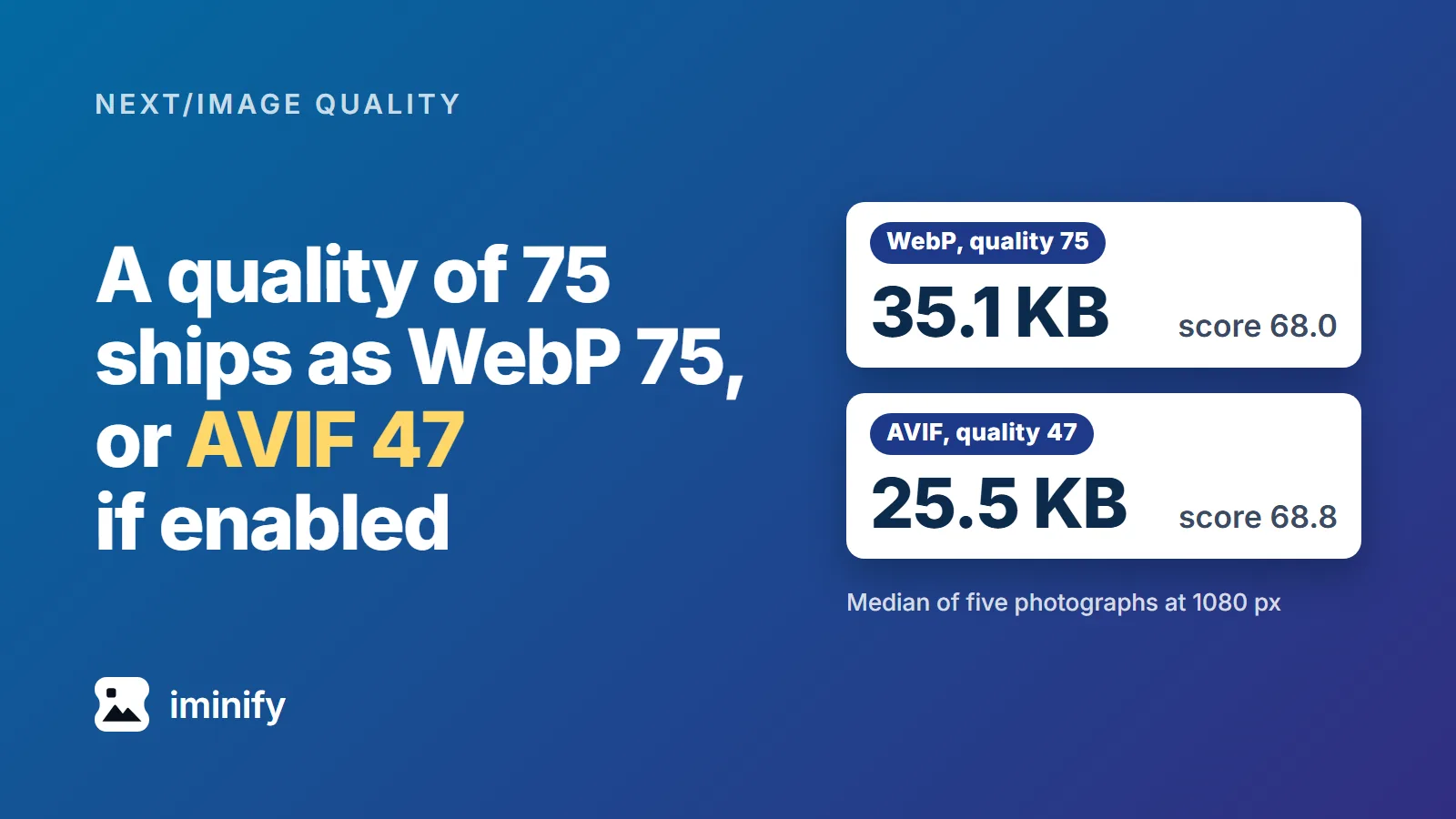
Two white cards on a blue gradient: WebP at quality 75, 35.1 KB, score 68.0, and AVIF at quality 47, 25.5 KB, score 68.8, beside the headline "A quality of 75 ships as WebP 75, or AVIF 47 if enabled".

What image quality does Next.js ship? WebP 75, AVIF 47 if you list it, and by default a 90 becomes 75

We built a Next.js 16.4.3 app with four images on one page, two of them declared with quality={90} and quality={100}. All 36 image addresses in the page's HTML said q=75. We also asked the image endpoint for q=90 directly, and it answered HTTP 400: "q" parameter (quality) of 90 is not allowed. That is Next 16's default: the list of allowed qualities is [75], and the component moves anything else to the nearest entry. This post follows the 75 to the encoder, in WebP and in AVIF if you switch it on, across 867 requests to a self-hosted /_next/image on nine source images. The default WebP puts one of our five photographs at 1080 px above 70, the "high quality" mark on SSIMULACRA 2, a perceptual score. AVIF at the same setting was 36.5 percent smaller across our 27 image and width combinations, and more than 3 points below WebP on score in 8 of them.

7 min read
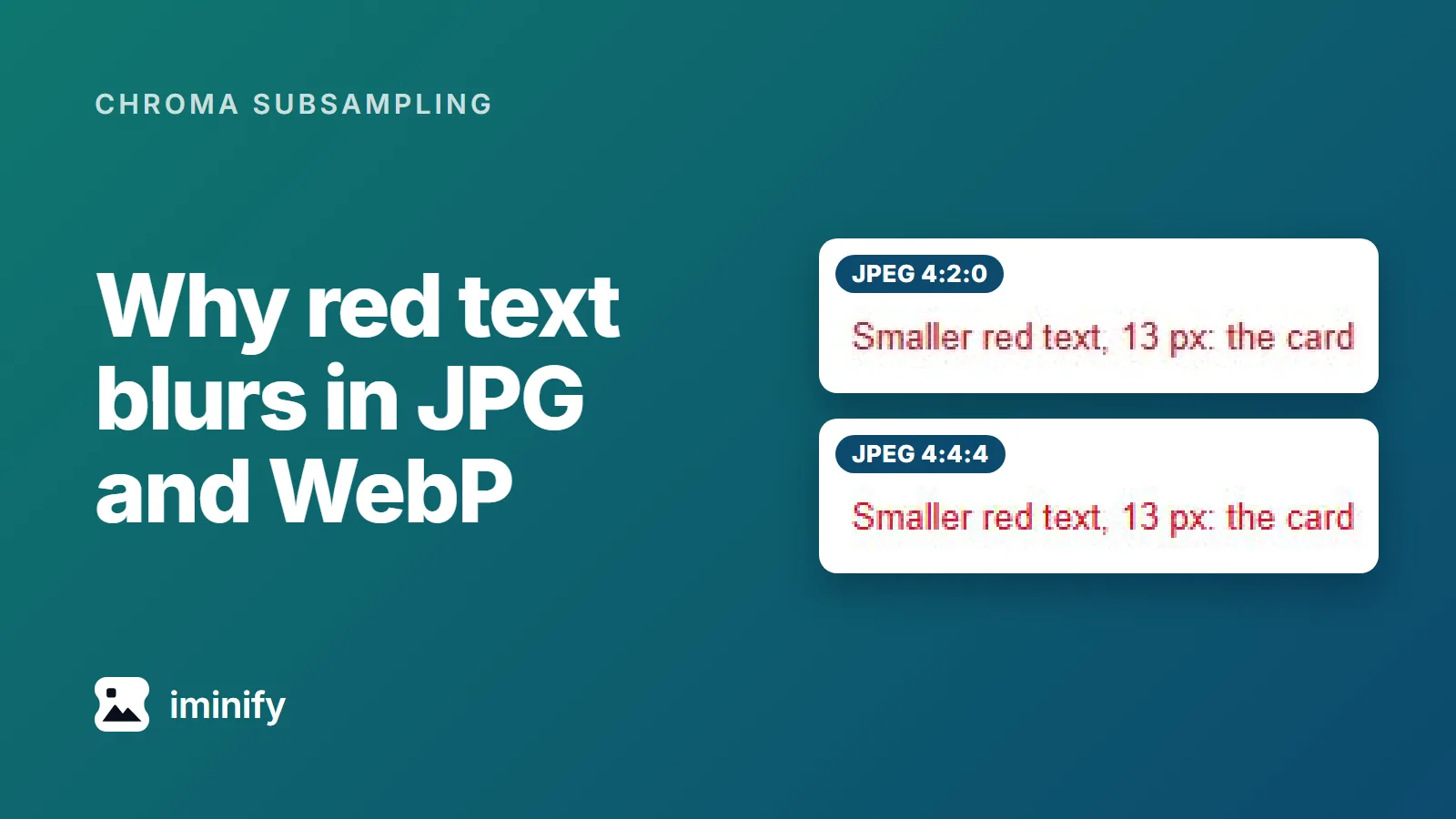
Two enlarged crops of the same red text saved as JPEG at quality 80, one at 4:2:0 and one at 4:4:4, beside the title. The 4:2:0 crop has a duller, browner red.

Why is red text blurry in JPG and WebP? Chroma subsampling, measured

On a test page we made full of red text, no quality from 30 to 100 lifted a plain 4:2:0 encode (no -sharp_yuv) past 58.2 on the SSIMULACRA 2 scale, which runs to 100: JPEG (cjpegli) reached 57.9, WebP 55.2, AVIF (avifenc) 58.2. The same JPEG written at 4:4:4 scored 81.6 at quality 90. That gap is chroma subsampling: 4:2:0 keeps colour at a quarter of the detail that brightness gets, and 4:4:4 keeps all of it. It's why red text looks blurry in a JPG or a WebP. The fix is 4:4:4 for JPEG and AVIF, -sharp_yuv for lossy WebP (which narrows the gap), or lossless WebP on a flat page; What we'd use has the numbers and commands.

6 min read

Keep your photos under budget

Drop a photo at the top and pick JPG, WebP or AVIF.