Why does my photo upload sideways? The rotation lives in a tag, and stripping metadata throws it away
On this page
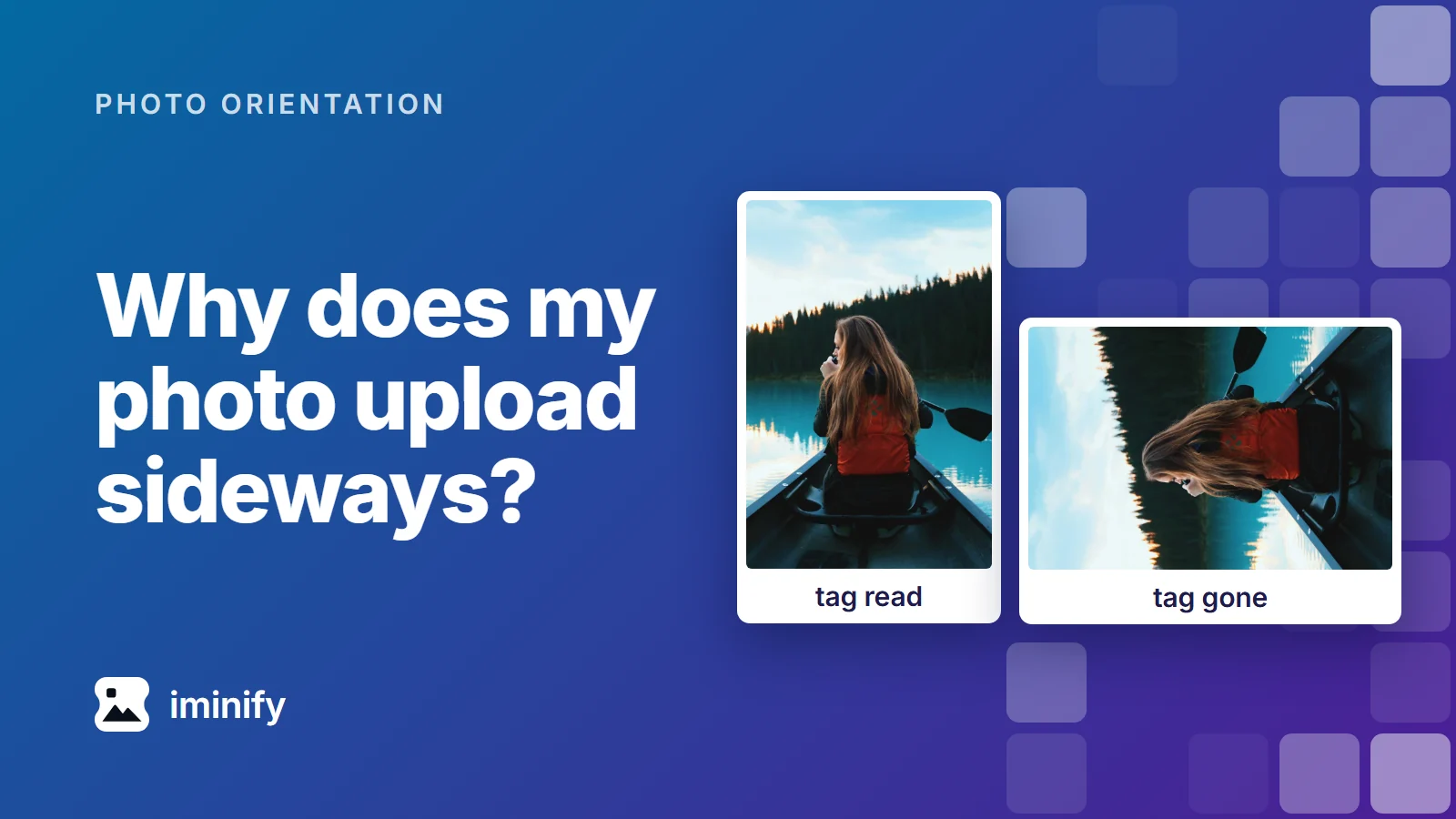
We stored a photo on its side with the EXIF tag Orientation 6 and opened it in Chrome 156. It stood upright. Then exiftool -all= removed the metadata, and the photo lay on its side. So did the copies saved by magick -strip and jpegtran -copy none.
That is how a photo can look right on your phone and arrive sideways on a website. The file holds the pixels the way the camera sensor wrote them, plus a tag that tells a viewer how to turn them. A site that ignores the tag, or software in its pipeline that drops it, shows the pixels as stored. The fix is to turn the pixels themselves so no tag is needed, and the steps are below. Removing metadata doesn't do that.
What does the EXIF orientation tag say?
Macworld explained the design in 2016: an image sensor "always captures the data without regard to orientation", so camera makers chose to "avoid rotating pixels and, instead, set a flag in the EXIF metadata". The flag is the Orientation tag, a number from 1 to 8. The two real photos we used, from a Galaxy S24 Ultra and a Fujifilm X-T4 (both from our post on JPEG size), are stored sideways with 6.
ExifTool's names for the eight values, what a photo stored under each looks like, and the jpegtran option that turns it upright:
| Tag | ExifTool says | Stored photo looks | jpegtran option |
|---|---|---|---|
| 1 | Horizontal (normal) | upright | none |
| 2 | Mirror horizontal | mirrored left to right | -flip horizontal |
| 3 | Rotate 180 | upside down | -rotate 180 |
| 4 | Mirror vertical | flipped top to bottom | -flip vertical |
| 5 | Mirror horizontal and rotate 270 CW | on its side, top at left, mirrored | -transpose |
| 6 | Rotate 90 CW | on its side, top at left | -rotate 90 |
| 7 | Mirror horizontal and rotate 90 CW | on its side, top at right, mirrored | -transverse |
| 8 | Rotate 270 CW | on its side, top at right | -rotate 270 |
Which saves keep the photo upright?
We stored one photo under each tag in two sizes, 800x1200 and 797x1199, saved all sixteen files with seven tools and opened every result in Chrome 156. Each save came out upright for all seven values other than 1 (tags 2 to 8), or for none of them.

Photo: Roberto Nickson, Unsplash, from Iminify's showcase.
The full list, with what each save left in the file:
| What the save did | Tag in the file | Upright in Chrome 156 |
|---|---|---|
Saved the JPEG with its metadata: jpegtran -copy all, magick in.jpg out.jpg, Pillow with exif= |
kept | 7 of 7 |
Removed the metadata: jpegtran -copy none, exiftool -all=, magick -strip |
gone | 0 of 7 |
Saved from the decoded picture: Pillow's save to JPEG, WebP or PNG, cjpegli, cwebp -metadata none |
gone | 0 of 7 |
WebP with the EXIF kept: cwebp -metadata exif, magick in.jpg out.webp |
kept, after the pixels | 0 of 7 |
PNG with the EXIF kept: magick in.jpg out.png |
kept, after the pixels | 0 of 7 |
The same PNG, its eXIf chunk moved in front of the pixels |
kept, before the pixels | 7 of 7 |
AVIF: avifenc |
kept, and a rotation or mirror box added | 7 of 7 |
AVIF: avifenc --ignore-exif --ignore-xmp |
gone | 0 of 7 |
Pixels turned: magick -auto-orient, Pillow's ImageOps.exif_transpose, jpegtran with the table's option and -copy none (800x1200 copies) |
gone, or 1 | 7 of 7 |
Pixels turned, tag kept: jpegtran with the option and -copy all (800x1200 copies) |
kept | 0 of 7 |
Tag set to 1, pixels not turned: exiftool -n -Orientation=1 |
1 | 0 of 7 |
A photo that looked right because a viewer read its tag lies on its side once the tag is gone, since nothing is left to read.
A kept tag doesn't always help. The WebP and the PNG that still held tag 6 lay on their side in Chrome 156, and exiftool read the tag back from both. The PNG turned upright when we moved the tag ahead of the pixels. Other browsers may differ, and we ran only Chrome: Mozilla's bug 1761174, still open when we read it, is about Firefox ignoring the tag in WebP, and WebKit's bug 210021, reported in 2020, traces Safari ignoring a PNG's tag to the tag sitting after the pixels.
Turn the pixels and keep the tag, and the viewer turns them again, as our post on repeated saves noted. Of the rows that came out upright, only the pixel-turning row doesn't depend on a viewer reading a tag.
How do you fix a sideways photo?
Save a copy that turns the pixels, with no tag or tag 1 left. Three ways:
- Iminify. Open compress JPEG, drop the photo in, choose Smart or Ultra and download it. On tags 2 to 8, Smart turned the pixels in JPG, WebP, AVIF and PNG output, and Ultra in JPG, the only output we ran it on. Both turned the two real photos: at Smart the Galaxy photo came back upright at 1.3 MB from 3.4 MB. The copy has no tag. With Keep EXIF on, which carries the rest of the EXIF across, JPG, WebP and AVIF copies carry tag 1.
- ImageMagick.
magick photo.jpg -auto-orient fixed.jpgre-encodes the JPEG once and keeps the rest of its EXIF, camera model included. On the Galaxy photo it wrote 2.9 MB, upright, tag 1.magickis ImageMagick 7's command; on version 6, writeconvert. - jpegtran, when no pixel may change. For tag 6:
jpegtran -rotate 90 -perfect -copy none -outfile fixed.jpg photo.jpg
Use the table's option for the other tags. -copy none drops the EXIF (camera and date fields included), the XMP and the colour profile, leaving only a JFIF header. -perfect makes jpegtran refuse when the picture doesn't divide into whole blocks. On the 4000x3000 Galaxy photo it printed transformation is not perfect and wrote nothing, so use the first or second way there; the Fujifilm photo went through. On the 797x1199 copies it refused six of the seven turns.
Iminify's Lossless level repacks a JPEG without re-encoding, and it's a maybe here. With Keep EXIF off it turned the Fujifilm photo (16.6 MB to 14.0 MB) and two crops we cut from the Galaxy photo, and left the whole Galaxy photo on its side with its tag, as the tool page says it will when a side isn't a whole number of blocks. It turned none of our 14 test files with tags 2 to 8, and we didn't find out why. The None level left both real photos on their side with tag 6. If a site still shows a photo sideways, run Smart or Ultra.
To check a copy, run exiftool -Orientation fixed.jpg: it prints nothing when no tag is left, or Horizontal (normal) for tag 1.
Why does one site show it sideways and another not?
WordPress 7.1 saves a turned copy of a photo whose tag isn't 1, named with -rotated. Software that ignores the tag, or a converter that drops it, hands on the stored pixels. This post tested no live site, so we can't say which ones do which. For iPhone HEIC photos, every converter we tried wrote an upright JPG from the three we used.
How we measured
The photo is the "Canoe" from Iminify's showcase, cropped to 800x1200 and 797x1199 and stored under each tag with Pillow 11.1.0 (4:2:0, quality 92, an EXIF block holding only the tag). ExifTool and a thumbnail comparison confirmed each file. The tools were mozjpeg 4.1.5's jpegtran, ExifTool 13.25, ImageMagick 7.1.1-43, Pillow 11.1.0, libwebp 1.5.0's cwebp, libavif 1.2.1's avifenc (-s 4 -j 2 -y 420 -q 60) and cjpegli from jpegli commit 031a0077.
Chrome 156, headless on Windows, drew each result on a 48x72 canvas. We took the mean difference over the three colour channels against the upright crop: upright files differed by at most 0.92 of 255 and the others by at least 38.14, across 388 files, the 16 test files and the copies saved from them, with nothing between. Plain <img> screenshots agreed. Iminify's results came through its API on 9 November 2026: 144 results on the test files, all upright in Chrome though only Smart and Ultra turned the pixels, and results for two real photos from Wikimedia Commons: the Fujifilm X-T4 photo and the photo whose EXIF says Galaxy S24 Ultra. We didn't run Firefox, Safari or a photo editor.