Stop your iPhone saving HEIC, and convert the photos you already have
On this page
An iPhone saves its photos as HEIC unless you tell it not to. To make it save JPG instead, open Settings, tap Camera, tap Formats and choose Most Compatible. That changes new photos only: everything already on the phone stays HEIC, and those files need converting.
We converted three HEIC photos taken on an iPhone 12 Pro to see what that costs. In the table below, the JPGs came out anywhere from 24% smaller to 61% bigger than their HEICs, and by default two of the three converters we tried kept the photo's GPS location.
How to turn off HEIC on your iPhone
Apple's page on HEIF and HEVC media gives the steps:
- Open Settings.
- Tap Camera, then Formats.
- Tap Most Compatible.
From then on, in Apple's words, "all new photos and videos will now use JPEG or H.264 format", so videos change too. To go back, choose High Efficiency on the same screen. Apple's guide to moving photos to a computer, published 14 September 2026, recommends the same switch for "the best compatibility with Windows".
The price is storage. Apple says HEIF and HEVC "use less storage space on your devices and iCloud Photos, while preserving the same visual quality", and gives no figure. We don't give one either: the numbers below are for converted files, not for photos taken in Most Compatible mode.
Keep HEIC and let the iPhone convert on the way out
If you'd rather keep the smaller files on the phone, Apple's HEIF page lists two places where the iPhone may convert for you:
- Importing over a USB cable into Photos, Image Capture or a PC: the photos "might be converted to JPEG or H.264". Apple's way to stop that is to tap Keep Originals under Settings, Apps, Photos, so avoid that option if you're hoping for JPGs.
- Sending by AirDrop, Messages or email to a device that doesn't support the format: the photo "might automatically be shared in a more compatible format, such as JPEG".
How to convert the HEIC photos you already have
On a Mac. In the Finder, Control-click the photo, choose Quick Actions, then Convert Image (on macOS 27, click More first), and pick JPEG and a size. That's from Apple's Mac User Guide, which uses "an .heic photo from your iPhone" as its example. In Photos or Preview, File > Export does the same.
On Windows. Before it can show a .heic file, Windows needs the free HEIF Image Extension from the Microsoft Store, and its listing says an HEVC package "must be installed" too. If it still can't show the file with only the HEIF extension installed, add the HEVC package the Store sells, HEVC Video Extensions, $0.99 on 23 September 2026. The browser route below needs neither add-on.
In a browser, on a computer or on the iPhone itself. Iminify's HEIC to JPG page opens with JPG and the Smart level already selected:
- Drop your HEIC files on the page. A guest can convert 10 a day, up to 16 MB each.
- Leave Keep EXIF off to remove the location, date and camera details, or turn it on to keep all three.
- Download the JPGs one at a time or as a single zip.
We didn't run the Mac or Windows routes. The measurements below come from two command-line converters and from the encoder Iminify uses.
Is the JPG bigger, and does it lose quality?
It depends on the quality setting. At the quality setting our replay of Iminify's Smart search picked, our three test photos came out 14% to 24% smaller as JPGs; at quality 95 they came out 26% to 61% bigger. None of the JPGs we scored reached a score of 90 on the SSIMULACRA 2 scale, the mark the metric's documentation calls visually lossless.
Our test files are three sample HEICs from heic.digital, shot on an iPhone 12 Pro running iOS 16.7 and 16.7.1, 3024 by 4032 pixels. We decoded each one the way Iminify does, encoded JPGs with jpegli (Iminify's JPEG encoder), and scored every JPG against the HEIC's own pixels on the SSIMULACRA 2 scale. The metric's README calls 80 "very high quality", with distortion "not noticeable by an average observer in a side-by-side comparison at 1:1". Sizes are in millions of bytes.
| Photo | HEIC | JPG, Smart's search | Score | JPG at quality 95 | Score |
|---|---|---|---|---|---|
| Classic car | 1.961 MB | 1.495 MB (quality 90) | 79.0 | 2.476 MB | 84.5 |
| Greyhounds | 1.721 MB | 1.349 MB (quality 83) | 80.2 | 2.764 MB | 87.6 |
| Old safe wall | 2.833 MB | 2.438 MB (quality 90) | 82.7 | 3.733 MB | 87.0 |
The middle columns replay Iminify's Smart level. It looks for the lowest JPG quality, up to 90, that keeps 40 dB of PSNR, a pixel-by-pixel error measure; the old safe wall didn't reach 40 dB even at 90, so it got the ceiling. We ran that search ourselves with the same encoder and settings. On photos this size Smart skips its second, perceptual check, which runs only under 8 megapixels, and these are 12.2 megapixels (why there are two checks).
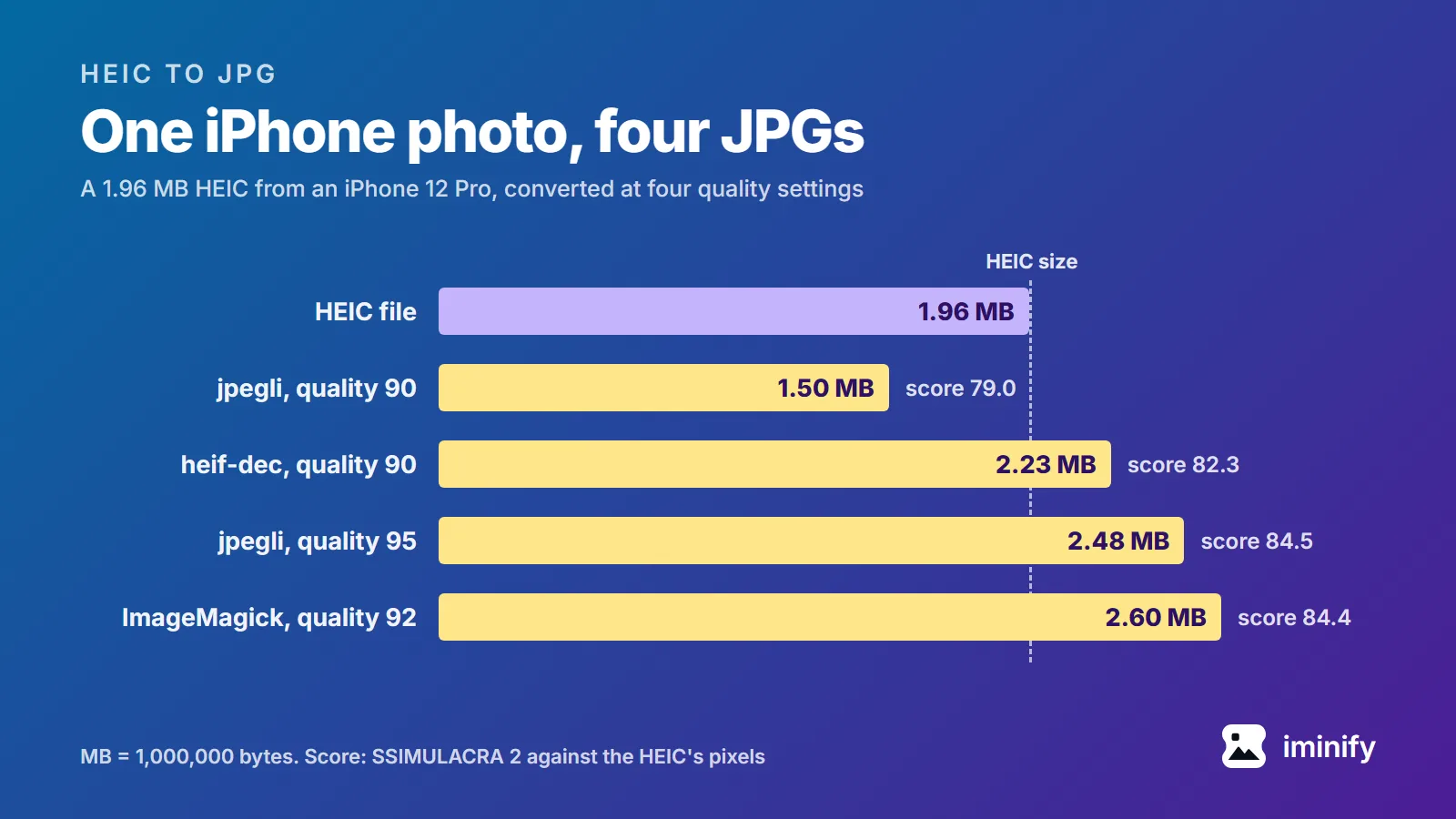
The two command-line converters pick their own quality. On the classic car, ImageMagick 7.1.2 at its default of 92 wrote 2.599 MB (score 84.4), and libheif's heif-dec 1.19.8 at quality 90 wrote 2.232 MB (score 82.3), against 1.495 MB from jpegli at 90. Part of that gap is the quality number, which doesn't carry from one encoder to another, as we found comparing four of them at quality 80. Part is colour detail: ImageMagick kept it at full resolution (4:4:4), where jpegli and heif-dec stored it at half the width and half the height (4:2:0).
Does the JPG keep your location, and is it upright?
All three HEICs carry the GPS position where they were taken. ImageMagick and heif-dec copied it into every JPG they wrote, along with the camera model and the date. Iminify removes it unless Keep EXIF is on; we checked both settings on the live page with the classic car. If you're converting photos to post or send, look at the JPG's details before you share it.
Orientation held up better. All three files store the picture sideways, plus an instruction to rotate it for display. Every converter we tried wrote an upright JPG and left no sideways instruction behind, so nothing came out on its side.