Image too large to upload? Each fix, measured on a phone photo
On this page
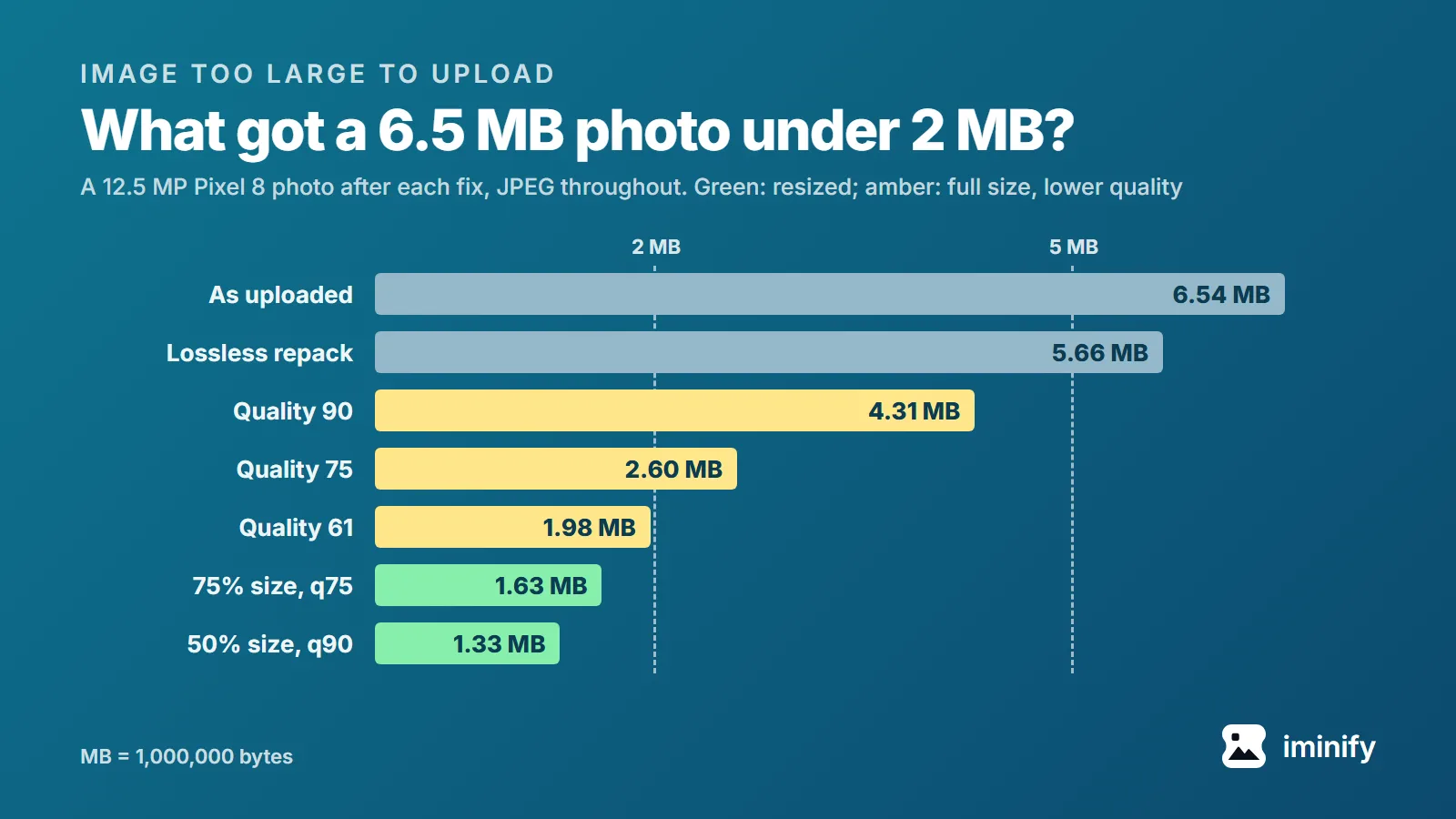
A 12.5-megapixel photo from a Pixel 8 phone is 6.54 MB. Say a form caps uploads at 2 MB. Halving the photo's width and height got it to 1.33 MB at JPEG quality 90, with no compression damage you'd notice side by side. At full size, getting under 2 MB took quality 61, close to where the damage becomes perceptible. Changing its DPI didn't change its size by a single byte.
So when an image is too large to upload, make it smaller in pixels before you squeeze the quality. Here's how, what each fix cost, and what changes for a 50-megapixel photo.
Get a photo under the upload limit in four steps
- Note the limit, and aim about 5% under it. The section on units below says why.
- Open Iminify's JPEG compressor, switch on Resize, choose Scale and set Percentage to 50. For a 50-megapixel photo, start at 25. If the file ends in .heic, use the HEIC to JPG page instead; it has the same Resize switch.
- Leave the level on Smart and drop the photo in. A guest can upload up to 16 MB, a free account 32 MB.
- Download the result and check its size. Iminify's results list counts 1,048,576 bytes to the MB. Still over? Run it again at a lower percentage, or pick Ultra.
Iminify has no "make it 2 MB" setting, so the percentage is what you turn.
What each fix did to a 6.5 MB phone photo
This is the photo from the opening. MB here means 1,000,000 bytes. The score is SSIMULACRA 2, a perceptual quality measure on which 70 means artefacts you can see but that don't annoy, and 80 means no difference you'd notice side by side.
| Fix | Pixels | Size | Score |
|---|---|---|---|
| None, as uploaded | 4080x3072 | 6.54 MB | |
| Lossless repack | 4080x3072 | 5.66 MB | pixels identical |
| Quality 90 | 4080x3072 | 4.31 MB | 86.1 |
| Quality 75 | 4080x3072 | 2.60 MB | 77.4 |
| Quality 61 | 4080x3072 | 1.98 MB | 71.5 |
| 75% size, quality 75 | 3060x2304 | 1.63 MB | 76.2 |
| 50% size, quality 90 | 2040x1536 | 1.33 MB | 84.5 |
The lossless repack is what Iminify's Lossless level does: it drops the metadata (about 125 KB here) and repacks the file without changing a pixel of the photo. That saved 13.4%, most of it from the repack. Not enough for even a 5 MB limit.
On this photo, Smart lands on the quality 90 row and Ultra on the quality 75 row. Smart looks for the lowest quality from 40 to 90 that keeps the error within its target, and this detailed photo misses the target even at 90 (37.1 dB of PSNR, a plain error measure, against the 40 it asks for). Ultra's top quality is 75, and it misses its own target there too (32.3 dB against 34). At full size, Smart clears a 5 MB limit but not 2 MB.
Don't convert a photo to PNG to shrink it. ImageMagick's PNG of this one came to 24.87 MB.
Resizing costs less than lowering the quality
At full size, quality 62 still came to 2.02 MB, so getting under 2 MB took quality 61, which scored 71.5. Half the width and half the height, a quarter of the pixels, gave 1.33 MB at quality 90 and scored 84.5.
Careful with that comparison. A resized file is scored against the resized picture, so 84.5 counts the compression damage and nothing the resize took away. The resize does take detail: 2040x1536 pixels is what's left.
Our call: unless the form asks for a minimum pixel size, send the smaller, cleaner picture. If it names one, check it before you shrink.
A 50-megapixel photo needs a bigger step
The second photo, from a Pixel 8 Pro, is 8160x6144 pixels and 13.06 MB. Iminify takes it without an account: it's under the 16 MB guest limit and the 64-megapixel ceiling. Smart gives it quality 90 at all three sizes we tried: above 36 megapixels Smart skips its search, and at half and quarter size, quality 90 still misses its target.
| Step | Pixels | Size | Score |
|---|---|---|---|
| Quality 90 | 8160x6144 | 8.57 MB | 87.1 |
| 50% size, quality 90 | 4080x3072 | 3.08 MB | 83.6 |
| 25% size, quality 90 | 2040x1536 | 1.02 MB | 78.7 |
Smart alone gets it under a 10 MB limit. Half size clears 5 MB, and a quarter clears 2 MB with the same pixel count as the first photo at half size.
Is 5 MB 5,000,000 bytes?
Not always. A file just under the limit can still bounce. PHP counts 1M as 1,048,576 bytes, and its default upload limit is 2M, which is 2,097,152 bytes. A form that counts in round millions allows 2,000,000.
Our Windows 11 machine counts the way PHP does, 1,048,576 bytes to the MB: it shows the first photo as 6.23 MB.
The 50-megapixel photo at full size and quality 75 came to 5,048,553 bytes. Our machine shows that as 4.81 MB. PHP's 5M, 5,242,880 bytes, accepts it; a limit of 5,000,000 refuses it. Stay 5% under the number and the difference between the two units no longer matters.
Changing the DPI doesn't make the file smaller
The first result we got for "image too large to upload how to reduce" on 23 September 2026, a Canadian immigration help page, advises 96 DPI. That's advice for when you scan a document, where DPI decides how many pixels you get: 300 DPI across 4 inches is 1,200 pixels. On a photo you already have, DPI is a label.
We changed the first photo's DPI from 72 to 300. Same size, 6,535,144 bytes, and every pixel identical. We also re-saved the same pixels with 72, 96 and 300 DPI in Pillow 12.3, a different encoder from our tables, at quality 90. All three came to 5,654,734 bytes.
How we measured this
The 12.5-megapixel photo is Spring crocuses in Planina Dol by VlaDexa (CC BY 4.0), and the 50-megapixel one is Dyke Road Park Cafe, Hove by Andy Li (CC0), both from Wikimedia Commons as uploaded. As the app does, ImageMagick 7.1.2 converted the crocuses photo from Display P3 to sRGB and did the resizing. We then encoded with jpegli (commit 031a0077f579), the encoder Iminify uses for JPEG, with the 4:2:0 chroma it uses for photos; the same quality number means something else in other encoders. Scores come from ssimulacra2 (libjxl v0.12.0), and PSNR is computed over the RGB values the way Iminify computes it. The lossless repack is mozjpeg 4.1.5's jpegtran. These are our encodes, not files downloaded from Iminify, so the app's bytes can differ.
A photo for your own website is a different question, with a different answer: how many KB a website image should be.