ComfyUI PNG to JPG loses the workflow. WebP and AVIF can keep it
On this page
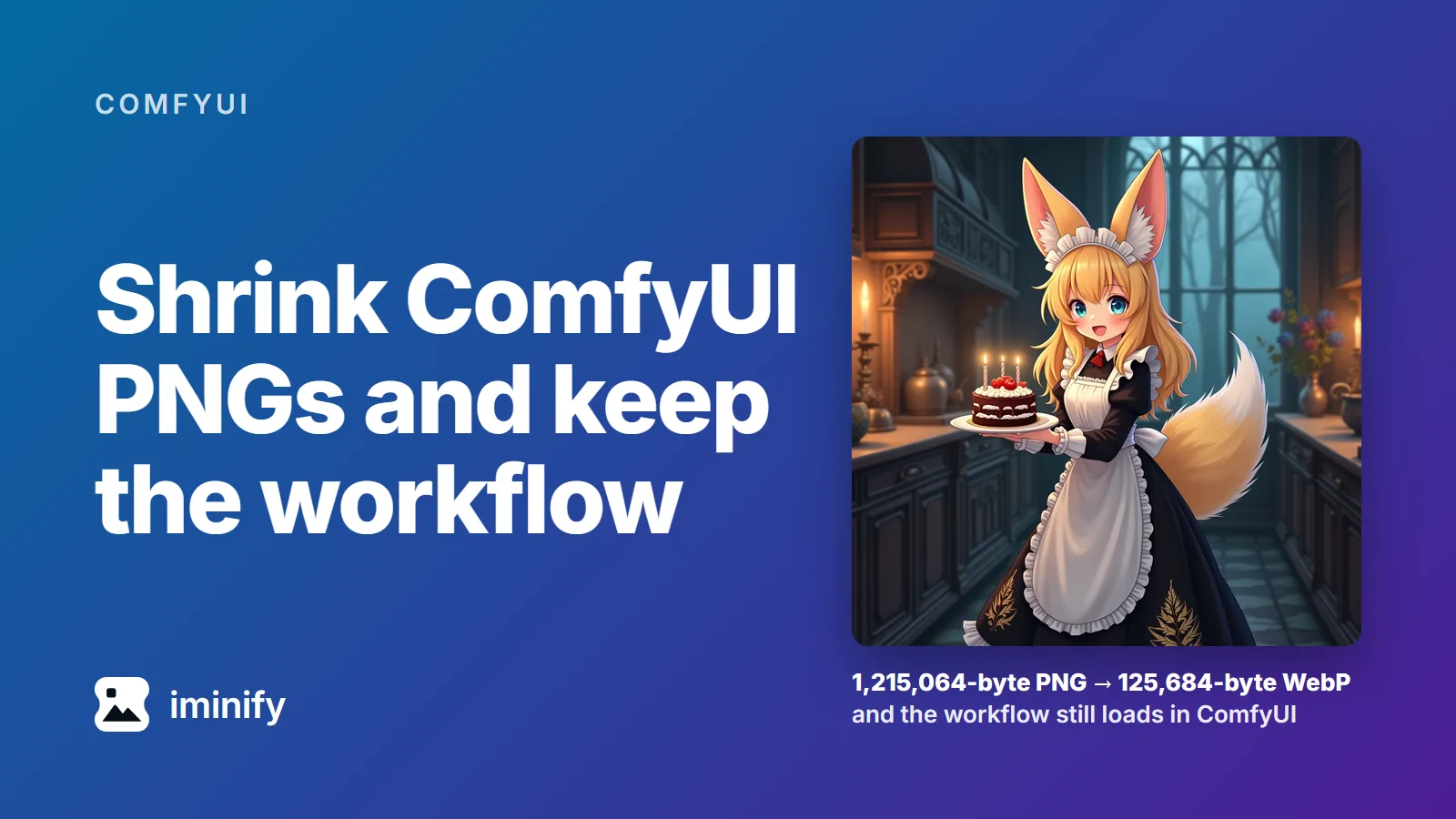
ComfyUI's Flux Dev example image is a PNG of 1,215,064 bytes, and the two text chunks holding its prompt and workflow take 12,240 of them. The rest is 1024x1024 pixels stored without loss. Across the 92 PNGs in ComfyUI's examples repository that carry a workflow, the text was no more than 3.32 percent of any file, with a median of 0.62 percent.
Converting to JPG shrinks the file, but ComfyUI's own loader can't read a workflow back out of a JPG. A WebP or AVIF can keep it, at about a tenth of the size. We took the text-to-image examples of ten models from ComfyUI's examples repository, made smaller copies several ways, and dropped the copies back onto ComfyUI 0.37.0's canvas to see which ones still held the workflow.
A JPG copy comes back as a Load Image node
Drop a ComfyUI PNG onto the canvas and its graph reappears. Drop a JPG copy and you get one Load Image node holding the picture. No workflow.
That held even when we wrote the workflow into the JPEG's EXIF, exactly the way ComfyUI writes it into a WebP. It held for the JPG from ShrinkComfy too, a converter whose README says its JPGs keep drag-and-drop working. Its WebPs did load, lossless included, although the README says ComfyUI can't read lossless ones.
The limit is ComfyUI's loader. Its parser in frontend 1.52.7, the version ComfyUI 0.37.0 requires, reads a workflow from a PNG's text chunks and from the EXIF of a WebP or an AVIF. It has no JPEG path, and ComfyUI's file-open dialog doesn't offer .jpg files at all. Custom nodes can add a JPEG loader; we didn't test them.
A plain converter loses the workflow too: cwebp copies only EXIF, ICC and XMP, and a ComfyUI PNG keeps its workflow in text chunks.
| File | Dropped onto ComfyUI 0.37.0 |
|---|---|
| WebP from Save Animated WEBP, lossless or not | the workflow of the graph that saved it |
| AVIF from Save Image (Advanced) | the workflow of the graph that saved it |
| WebP of the PNG from the script below | the PNG's own workflow |
WebP of the PNG from cwebp -q 90, with or without -metadata all |
a Load Image node |
| JPEG of the PNG, even with the workflow in its EXIF | a Load Image node |
For new images, save WebP or AVIF from ComfyUI itself
ComfyUI 0.37.0 has two save nodes that keep the workflow in a smaller file:
- Save Animated WEBP. Put it where Save Image was, then set
losslessto false: it's true by default, and a lossless WebP was still 70.1 to 79.8 percent of the PNG.qualitydefaults to 80; we'd set 90. Fed one image, it writes an ordinary still WebP with the prompt and workflow in EXIF. Fed a batch, it writes one WebP for the whole batch, an animation when the images differ. - Save Image (Advanced) with format
avif. The AVIF option arrived in ComfyUI 0.35.0 and encodes at CRF 18 by default ("Lower values produce higher quality and larger files", says the node). In its default mode it writes one file per image.
We ran all ten images through each setting. The score is SSIMULACRA 2 against the original PNG:
| Save node and setting | Size, as a share of the PNG | SSIMULACRA 2 |
|---|---|---|
| Save Animated WEBP, defaults (lossless) | 70.1 to 79.8% | identical pixels |
| Save Animated WEBP, lossless off, quality 80 | 4.1 to 8.2% | 71.2 to 78.4 |
| Save Animated WEBP, lossless off, quality 90 | 7.5 to 12.4% | 80.9 to 85.2 |
| Save Image (Advanced), AVIF, CRF 18 | 4.6 to 9.7% | 79.5 to 83.2 |
| For comparison: JPEG at quality 90 (Pillow 12.3.0) | 10.9 to 17.8% | 84.1 to 86.6 |
On the metric's own scale, 80 means "very high quality. Distortion not noticeable... in a side-by-side comparison at 1:1". Quality 90 scored above 80 on all ten images; quality 80 scored below 80 on all ten. That's why we'd pay the extra kilobytes. Our encoder comparison found cwebp's quality 80 low on this scale too, a median of 71.8 on six photographs. The ten quality-90 WebPs came to 9.7 percent of the PNGs' total bytes, and the AVIFs to 7.1 percent.
Against the quality-90 WebP, the AVIF was smaller on all ten images and scored lower on all ten, by 0.04 to 3.3 points. Both stay near or above 80, so pick the format the rest of your tools open.
In our test the saved workflow was the small load-and-save graph we ran. In yours it's your generation graph, since the node saves whatever graph produced the image.
For PNGs you already have, copy the workflow into EXIF
Re-saving an old PNG through ComfyUI would store the re-saving graph, not the one that made the picture. So we wrote a short script that copies each PNG's text chunks into a WebP's EXIF the way Save Animated WEBP does: the prompt into tag 0x0110, the workflow into 0x010F.
Save this as comfy_png_to_webp.py:
import sys
from pathlib import Path

from PIL import Image

for png in sorted(Path(sys.argv[1]).glob("*.png")):
    webp = png.with_suffix(".webp")
    with Image.open(png) as im:
        exif = Image.Exif()
        tag = 0x010F
        for key, value in im.info.items():
            if not isinstance(value, str):
                continue
            if key == "prompt":
                exif[0x0110] = f"prompt:{value}"
            else:
                exif[tag] = f"{key}:{value}"
                tag -= 1
        im.save(webp, quality=90, method=6, exif=exif)
    print(f"{png.name}: {png.stat().st_size:,} -> {webp.stat().st_size:,} bytes")
Run it on a folder with a Python that has Pillow (we ran Pillow 12.3.0). ComfyUI's own Python has it, because ComfyUI requires it:
python comfy_png_to_webp.py ComfyUI/output
On the Windows portable build, use python_embeded\python.exe in place of python: it's the Python that run_nvidia_gpu.bat starts ComfyUI with.
The script writes a .webp next to each PNG in that folder (not in subfolders) and leaves the PNGs alone, so you can check the copies before deleting anything. The Flux Dev PNG became a 125,684-byte WebP. Across the ten examples the WebPs were 7.8 to 12.3 percent of the PNGs and scored 80.4 to 85.3. Then we dropped the ten into ComfyUI one at a time. Same nodes, same settings as the PNGs. Drop several files at once and ComfyUI makes Load Image nodes instead.
If you'd rather keep PNGs, a lossless optimiser won't get you far. OptiPNG 0.7.8 at -o2 kept the workflow and the pixels and saved 2.7 to 6.7 percent.
Iminify keeps a WebP's workflow, not a PNG's
Iminify drops the workflow from a PNG it converts. PNG to WebP at Smart turned the Flux Dev PNG into a 91,240-byte WebP scoring 81.3 and holding no workflow, even with Keep EXIF on. That toggle carries an EXIF block over, and a ComfyUI PNG has none.
We then uploaded the lossless WebP that Save Animated WEBP made by default, 851,816 bytes, with Keep EXIF on. Smart returned 66,182 bytes with the workflow still in its EXIF, and ComfyUI loaded it. With Keep EXIF off, the workflow was gone.
That copy scored 72.4, below the 84.5 of ComfyUI's own quality-90 WebP. Iminify treats every WebP upload as already lossy and caps its quality at 75, lossless ones included. It doesn't take AVIF uploads at all.