Does Squarespace compress images? What it sent Chrome for 621 images
On this page
Yes. On 25 September 2026 we asked Squarespace's image server for 621 images from 85 Squarespace sites, once the way Chrome asks and once the way a browser without WebP support asks. On 84 of those sites Chrome got a WebP that Squarespace had made itself, for every JPG and PNG upload. Squarespace's resized JPEG copies were encoded at quality 85, its WebPs came closest to quality 85 of the settings we tried, and none of the 35 uploads wider than 2,500 pixels came back wider.
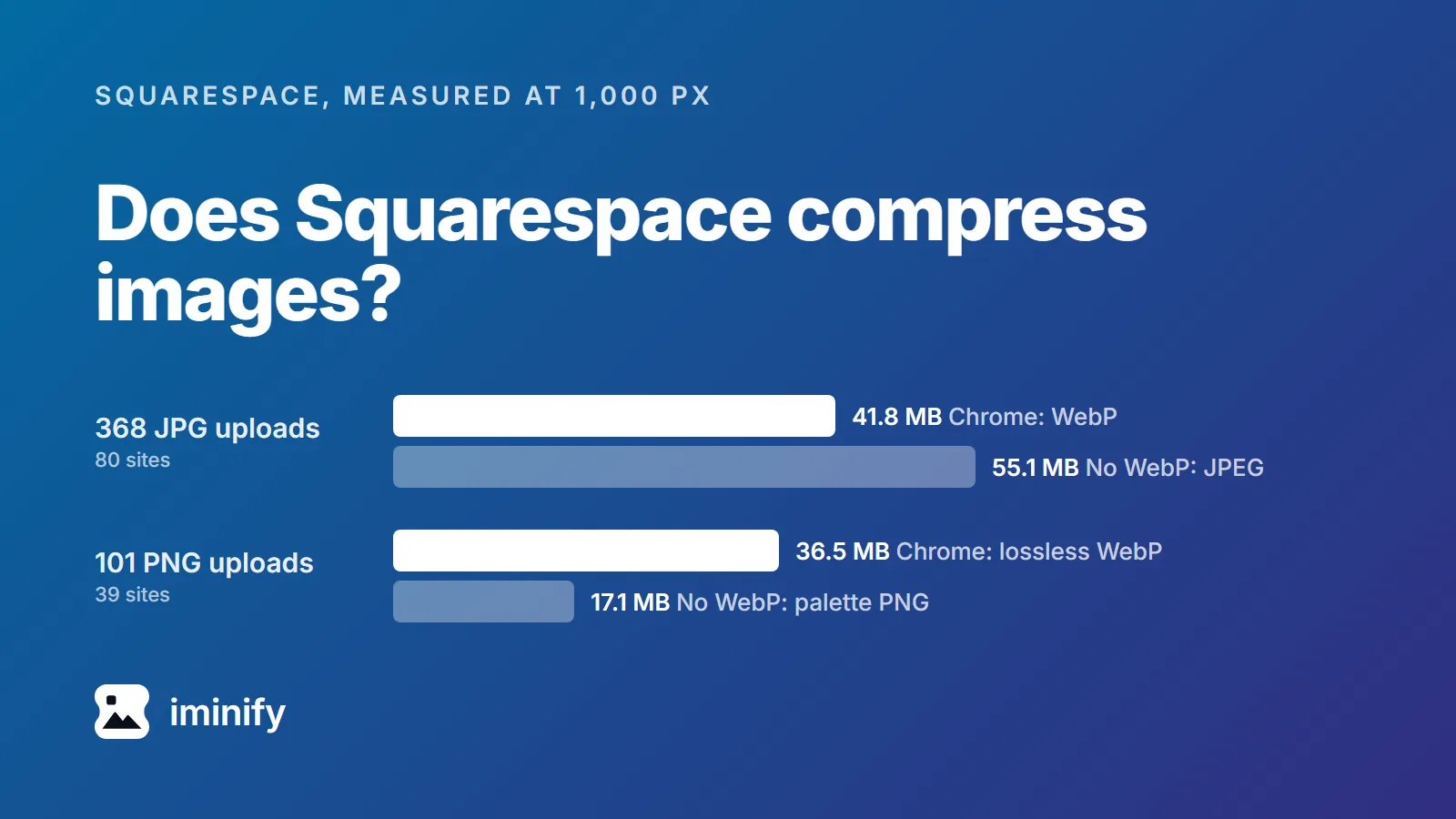
At 1,000 pixels wide, Chrome's WebPs of JPG uploads weighed 24% less in total than the JPEG copies Squarespace sends browsers without WebP. Chrome's WebPs of PNG uploads were lossless and weighed more than twice as much as the PNG copies those browsers get, cut to 256 colours or fewer. GIFs went out as GIFs. What that means for your uploads is in the list near the end.
What Squarespace sent Chrome, by upload type
Squarespace makes up to seven copies of every image, from 100 to 2,500 pixels wide, and its help page on image formatting says uploads are "converted to WebP format". What comes back depends on the list of formats the browser sends with the request, which we explained in our post on why images save as WebP.
Here is what came back at the 1,000-pixel copy, for uploads wider than that:
| You uploaded | Chrome got | A browser without WebP got | Total bytes, Chrome vs no WebP |
|---|---|---|---|
| JPG (368 images, 80 sites) | lossy WebP | JPEG at quality 85 | 41.8 MB vs 55.1 MB |
| PNG (101 images, 39 sites) | lossless WebP | PNG cut to 256 colours or fewer | 36.5 MB vs 17.1 MB |
| GIF (12 images, every width we asked for) | the GIF | the same GIF | identical |
None of the 2,138 responses was an AVIF.
The hero photo on the Radian template's demo site was uploaded at 6,000 by 4,000 pixels. At 1,000 pixels Chrome gets an 82 KB WebP and a browser without WebP a 117 KB JPEG; at 2,500 pixels, 368 KB against 555 KB.
Nothing wider than 2,500 pixels came back
We asked for 35 uploads wider than 2,500 pixels, up to 8,688 wide, at full size with format=original. All 35 came back 2,500 pixels wide.
Should you compress before uploading?
The quality you export at doesn't carry through to Squarespace's resized copies, or to the WebPs Chrome gets: Squarespace encodes those itself. Every resized JPEG copy we checked at 1,000 pixels, 368 of 368, carried the tables libjpeg uses for quality 85. One guide to Squarespace images, on lighterimage.com, says Squarespace compresses at quality 75; we found none at 75.
Squarespace's WebPs match libwebp's quality 85 as closely as we can tell from outside. We took 40 of them, encoded the JPEG copy of the same size with cwebp at every quality from 75 to 95, and compared the compression settings written inside each file: 85 came closest every time, identical on 21 and one quantizer step off on 15 more. (A JPEG 85 and a WebP 85 are not the same thing; the number just happens to match.)
The exception is the file a browser without WebP gets at an upload's own width: it kept the upload's own encoding. Those browsers are about half a percent of browser use by caniuse's count. A photo in the Cailles demo is 1,500 pixels wide: Chrome gets a 110 KB WebP, a browser without WebP a 907 KB JPEG with quality-99 tables. A photo in the Malone demo still carries the comment "Optimized by JPEGmini". So Squarespace's advice to upload "500 KB or less" reaches those few browsers at the upload's own width; everyone else gets Squarespace's own encode.
What we didn't test is whether a lighter upload makes Squarespace's own copies lighter.
PNG photos are the expensive upload
A PNG upload goes to Chrome as a lossless WebP, which keeps every pixel. The Soony demo's product shots are photographs saved as PNG. One, a pink candle, is 2,500 pixels square. At 1,000 pixels Chrome gets 636 KB of it. We encoded those exact pixels with cwebp -q 85, the setting Squarespace's lossy WebPs came closest to, and got 26.5 KB, about a 24th of the 636, scoring 79.6 on SSIMULACRA 2, where 80 means "Distortion not noticeable" side by side.
We scored 98 of the table's 101 PNG uploads, and 48 of those looked like photographs (over 20,000 colours at 1,000 pixels). Chrome got 28.7 MB of lossless WebP for them. The same pixels at cwebp -q 85 came to 3.6 MB. That's our encode, not Squarespace's: a JPG upload would be re-encoded by Squarespace from your file, so its bytes would differ.
At resized widths up to 1,500 pixels, a browser without WebP gets a palette PNG instead, cut down to at most 256 colours. On the candle that meant 75 colours and a score of 74.6. On a transparent dark gradient in the Night demo it meant 4 colours, with dithering standing in for the fade, and a score of 47.6. Across the 98, the median was 83.4 and 9 fell below 70.
Squarespace's help says to save images with text as PNG, and for text and flat graphics that's right: Chrome gets the Radian demo's PNG logo as a 23.5 KB WebP at 1,000 pixels. Transparency is the other reason to keep a PNG: 46 of those 98 had some, and a JPG can't carry it. For a cut-out product shot, keep the PNG, no wider than the page shows it.
GIFs go out as GIFs, and a smaller copy can be bigger
None of the 12 GIFs in the sample was converted: each came back as a GIF to both kinds of request, every frame kept. (Squarespace's help on animated GIFs notes that editing one in its image editor turns it into a static JPG.) Squarespace does resize them, and 6 of the 12 had a smaller copy that weighed more than the full-size one. The heaviest file was a GIF of 110 frames on one of the customer sites: 12.5 MB at its full 582 pixels wide, 25.6 MB at 500.
Squarespace takes no animated WebP. Its help recommends a GIF sized to how it's shown and compressed, and a video if the compressed GIF looks poor. Fewer frames and fewer pixels make the GIF you upload smaller.
Should you switch WebP off?
Squarespace lets you, with a "WebP image format" toggle in Image Settings. One of the 65 customer sites sent Chrome no WebP at all, consistent with the toggle being off, and there Chrome got byte for byte the files a browser without WebP gets.
For the 368 JPG uploads wider than 1,000 pixels, that means JPEG copies 32% heavier than the WebPs (55.1 MB against 41.8). For the 101 PNG uploads it means lighter files at 1,000 pixels, 17.1 MB against 36.5, because they arrive as palette PNGs, which scored a median 83.4 across the 98 we scored and 47.6 on the Night gradient. Converting the PNG photos to JPG saves more, with no palette: their 28.7 MB of lossless WebP came to 3.6 MB in our encode. Keep WebP on and fix the PNG photos instead.
What to upload
- Photos as JPG, 2,500 pixels wide. That's the width Squarespace's help calls ideal, and nothing wider came back to any of our requests. If your camera gives you more, resize with Iminify first.
- A photo someone saved as PNG: convert it to JPG before uploading (Iminify set to JPG), unless it needs a transparent background.
- Logos, text and flat graphics: PNG is fine.
- GIFs: as few frames and pixels as the job allows, or a video.
- Don't export at quality 100. Chrome gets Squarespace's own re-encode either way, and the half a percent of browsers without WebP get a file that keeps your export's encoding at the upload's own width.
How we measured
On 25 September 2026 we collected images from the home pages of 85 Squarespace sites: 20 of Squarespace's own template demos (every tenth of the 200 listed) and 65 customer sites taken from three "best Squarespace websites" roundups on colorlib.com and sitebuilderreport.com, up to eight images per site plus every WebP upload. That's a convenience sample, not a random one. Each image was requested at format=1000w with Chrome 153's Accept line, image/avif,image/webp,image/apng,image/svg+xml,image/*,*/*;q=0.8, and with one that leaves WebP out. Fifteen demo images, five of them wider than 2,500 pixels, and the squarespace.com image from our WebP post were requested at all seven widths, at format=original and with no format, under four Accept lines: Chrome's, Firefox's, one without WebP, and our page scanner's. We also requested 30 more uploads wider than 2,500 pixels at format=original, and the GIFs, the WebP uploads and the one site without WebP at five format values, each under two Accept lines: 2,138 responses in all.
Scores are SSIMULACRA 2 from libjxl 0.12.0, measured against Chrome's lossless WebP of the same width, which holds Squarespace's own resized pixels. cwebp is libwebp 1.5.0 with no flags but -q.
We uploaded nothing to Squarespace, so we saw what its server sends, never what it keeps.