Why does a transparent PNG turn black as a JPG? The colour hiding underneath
On this page
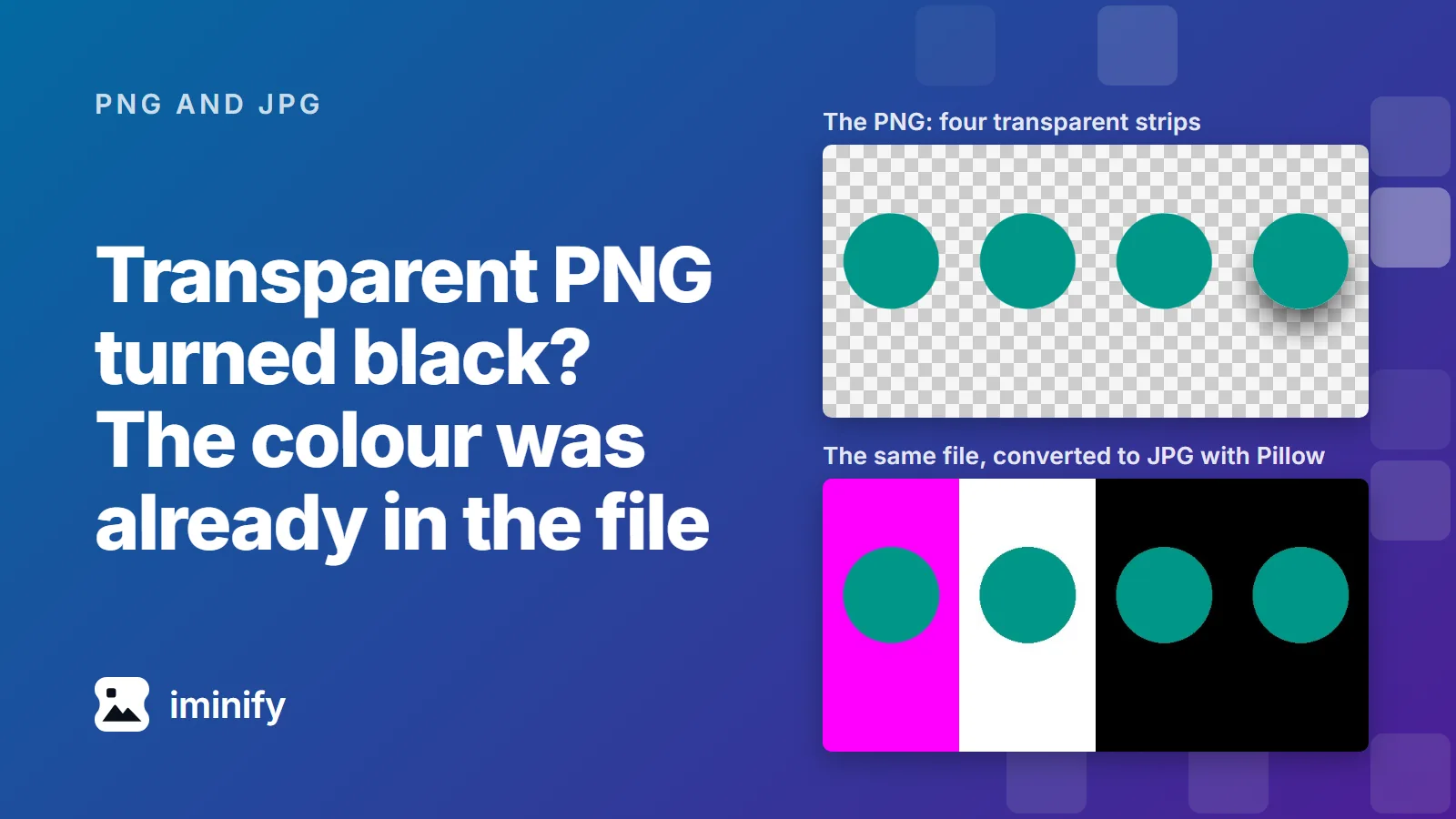
We made an 800x400 test PNG with four strips that look alike: the same teal circle on a transparent background, four times over (the fourth with a soft shadow). Then we turned it into a JPG with Pillow, Python's imaging library, using its convert("RGB"). The four strips came back magenta, white, black and black.
Nothing was added. Those colours were already in the PNG, sitting under the transparency.
A JPG can't store transparency, so whatever writes it has to put something behind the picture. Some tools paint white. Some just reveal the colour stored under the transparent pixels, which is often black. And Chrome's canvas, the drawing surface web pages use to edit images, paints black whatever was there, because the HTML standard says it must. If you want white, or any other colour, you have to choose it before the JPG is written. Iminify's JPG output puts white behind the picture, and PNG to WebP keeps the transparency instead.
A transparent pixel still has a colour
Each pixel of a transparent PNG has a colour (red, green and blue, or a grey level) and an alpha value that says how opaque it is. Alpha zero is fully transparent. The PNG specification keeps the colour separate from the alpha ("The color values in a pixel are not premultiplied by the alpha value"), so a fully transparent pixel still has a colour. You never see it while the transparency is there.
The specification names two cases. If the alpha is a mask, "the color values of fully transparent pixels should be preserved for future use". If it only cuts out a shape, "fully transparent pixels should all be assigned the same color value for best compression". It also asks that "the colors assigned to transparent pixels should be reasonable background colors whenever feasible".
Black is the most common choice in the files we sampled. We downloaded 213 PNGs uploaded to Wikimedia Commons on 30 and 31 October 2026, one per uploader, and 62 of them had fully transparent pixels: 32 stored black under every one, 10 white, 3 one dark green, (71, 112, 76), and 17 a mix or another colour. The app icon from our test images, a 1600-pixel PNG, has 237,689 fully transparent pixels, and every one of them is black.
What each PNG-to-JPG converter puts behind the picture
We made JPGs from the test PNG with five converters. Strips one to four hide magenta, white, black and black; strip four also has a soft drop shadow made of semi-transparent black pixels.
| Converter, as we ran it | What filled the transparent area | The soft shadow |
|---|---|---|
Pillow 11.1.0, convert("RGB"), then save as JPG |
the hidden colour: magenta, white, black, black | solid black |
| Pillow, saving the PNG straight to JPG | nothing: OSError: cannot write mode RGBA as JPEG |
|
ImageMagick 7.1.1-43, magick in.png out.jpg |
the hidden colour (the same file as -alpha off) |
solid black |
ImageMagick, -background white -flatten |
white | light grey |
PHP 8.3 with its bundled GD, imagejpeg() after imagecreatefrompng() |
the hidden colour | solid black |
Chrome 156, canvas toBlob(callback, "image/jpeg") |
black in all four strips | solid black |
| Iminify, JPG output at its Smart or Lossless level | white | light grey |
So "just save it as a JPG" often doesn't choose a background at all. Pillow's convert("RGB"), ImageMagick's default and GD's imagejpeg() threw the alpha away and kept each pixel's own colour.
Chrome works differently. Drawing the PNG onto a canvas wiped the hidden colours (reading the pixels back gave 0, 0, 0, 0 at each strip's corner), and then the HTML standard takes over: "For image types that do not support an alpha component, the serialized image must be the bitmap image composited onto an opaque black background". A web page that converts your file on a canvas without painting a background first hands you black, at least in Chrome 156, the browser we tested.
The shadow shows a second problem. Its pixels are black and only their alpha made them faint, so dropping the alpha turned a soft shadow into a solid black blob. Composited onto white, the same pixels came out light grey (183 out of 255 where we measured it).
Compressing first can change the colour you get later
The hidden colour can also change before any JPG is made. Some encoders treat it as free space. cwebp's documentation says so plainly: in lossless mode "the invisible pixel values (R/G/B or Y/U/V) will be preserved only if the -exact option is used", and -exact is off by default "to help compressibility".
We encoded the test PNG with several tools, then dropped the alpha from each result to see what it was hiding:
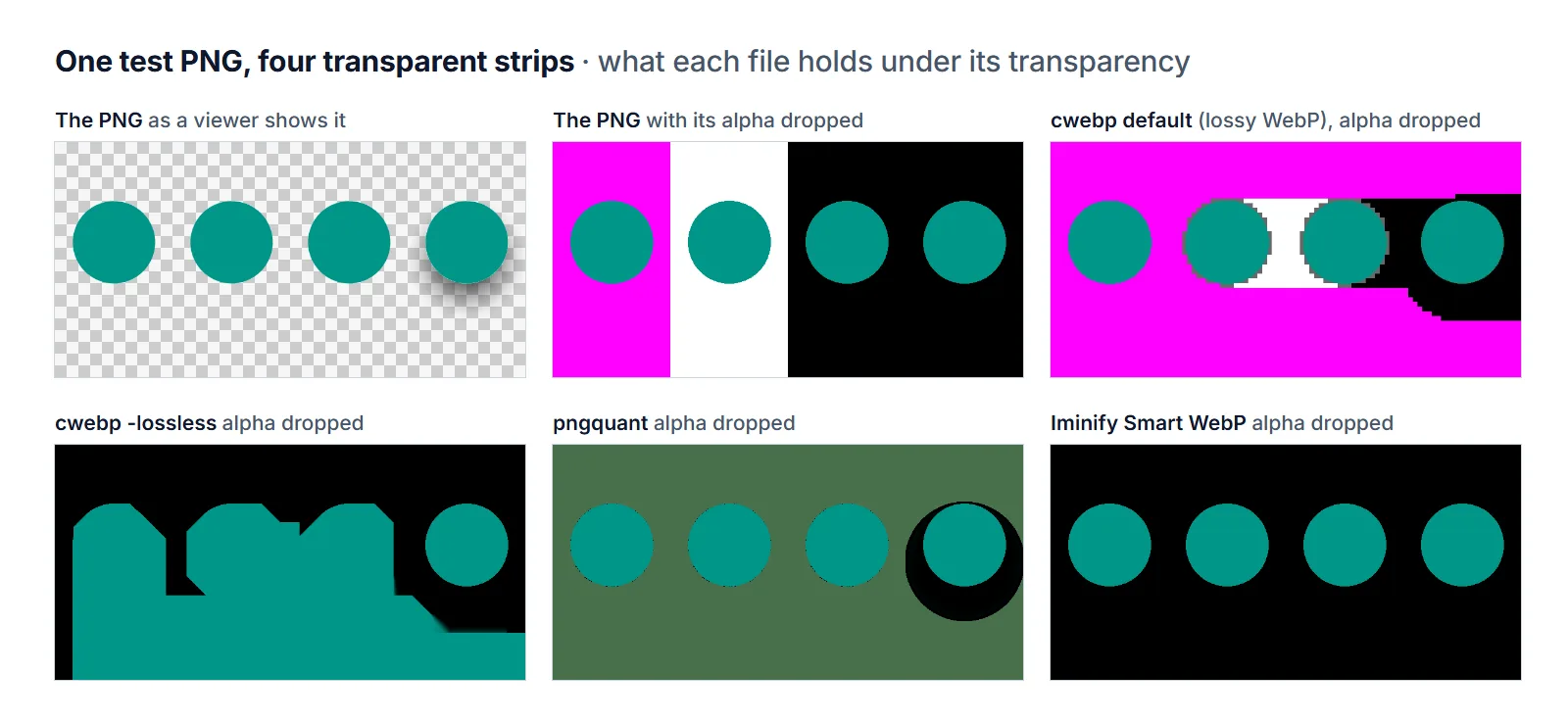
- cwebp 1.5.0 at its default (lossy) filled most of the transparent area with blocks of magenta, across all four strips.
cwebp -losslessleft teal smears beside the circles and black elsewhere. Adding-exactkept the original colours.- pngquant 2.18.0 set every fully transparent pixel to one dark green (71, 112, 76).
- avifenc 1.2.1 with
--lossless, zopflipng 1.0.3 and optipng 0.7.8 kept the colours as they were.
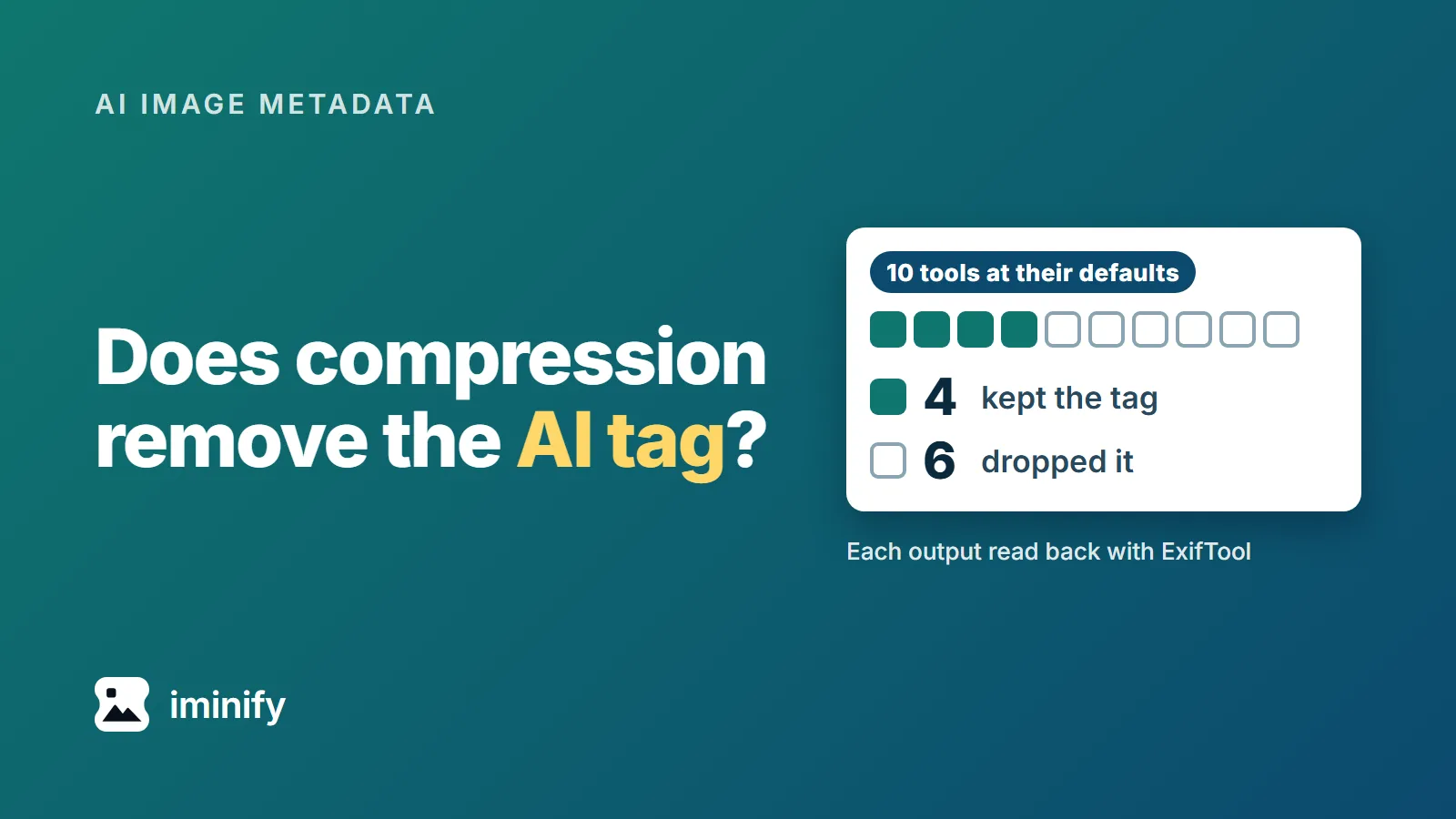
Iminify's Smart WebP of the test PNG held black under all but 24 of its 239,752 fully transparent pixels, and its Smart PNG, which goes through pngquant, held the same dark green. Neither shows while the transparency is there. But a tool that later drops the alpha will give you black, or green.
Choose the JPG's background yourself
- Keep the transparency if you can. If the place you're uploading to takes PNG, WebP or AVIF, don't convert to JPG at all. PNG to WebP keeps the alpha channel.
- If it has to be a JPG, flatten onto a colour first. Iminify's JPG output puts white behind the picture (as our PNG to WebP post shows).
- For any other colour, do the flattening in your own tool. ImageMagick does it in one command (swap
whitefor a value such as"#f4efe6"):
magick logo.png -background white -flatten logo.jpg
That's ImageMagick 7; version 6 calls the command convert. In Python, composite the image onto a solid background before the conversion:
from PIL import Image

im = Image.open("logo.png").convert("RGBA")
background = Image.new("RGBA", im.size, (255, 255, 255, 255))
Image.alpha_composite(background, im).convert("RGB").save("logo.jpg", quality=90)
Both gave us white where the transparency was and a light grey shadow. In a browser, set fillStyle to white and fillRect the canvas before drawImage; that gave us white too. In PHP, imagefill() an imagecreatetruecolor() canvas with white and imagecopy() the PNG onto it before imagejpeg().
- If the JPG already came out black, go back to the PNG. The transparency is gone from the JPG, and Iminify can't remove a background to bring it back.
Black after an upload, or only in some apps?
Not every report is about a conversion you ran yourself. In a Shopify Community thread from October 2023, someone working on a store reported that "approx 1 in 10" of their transparent PNGs came back with a black background after being saved to the store, and suspected "a transformation designated by the Shopify CDN". Nobody in the thread confirmed it, and we didn't test Shopify. If your uploads come back black, flattening the image onto your own background first (steps 2 and 3 above) leaves the site no transparency to lose.
Others describe a PNG that is still transparent but looks black in certain programs. In a Microsoft Community Hub thread from August 2023, designs looked black in Affinity Designer, GIMP, Inkscape and Windows Explorer, "but when opened they have a transparent background", and two replies say moving the files off OneDrive to a local drive fixed it. When a file shows its transparency anywhere, the transparency is in the file and the black comes from how it's being displayed. We didn't test those programs.
How we tested
On 31 October 2026 we built the 800x400 test PNG with Pillow and numpy and ran Pillow 11.1.0, ImageMagick 7.1.1-43, cwebp 1.5.0, pngquant 2.18.0, zopflipng 1.0.3, optipng 0.7.8 and avifenc 1.2.1 in one Docker image, PHP 8.3.36 with its bundled GD in the official WordPress 7.1.3 image, and headless Chrome 156 through its DevTools protocol. Iminify's results came from its API, which gives the same results as the website at the same settings. We read the colour under every fully transparent pixel with numpy, and the JPGs at a 30-pixel patch in each strip's corner and a 10-pixel patch of the shadow. The Commons sample was the newest uploads the Commons API listed, PNGs of at most 400,000 bytes and 2,000 pixels a side, one per uploader.