Why is my PNG file so large? Four causes, measured
On this page
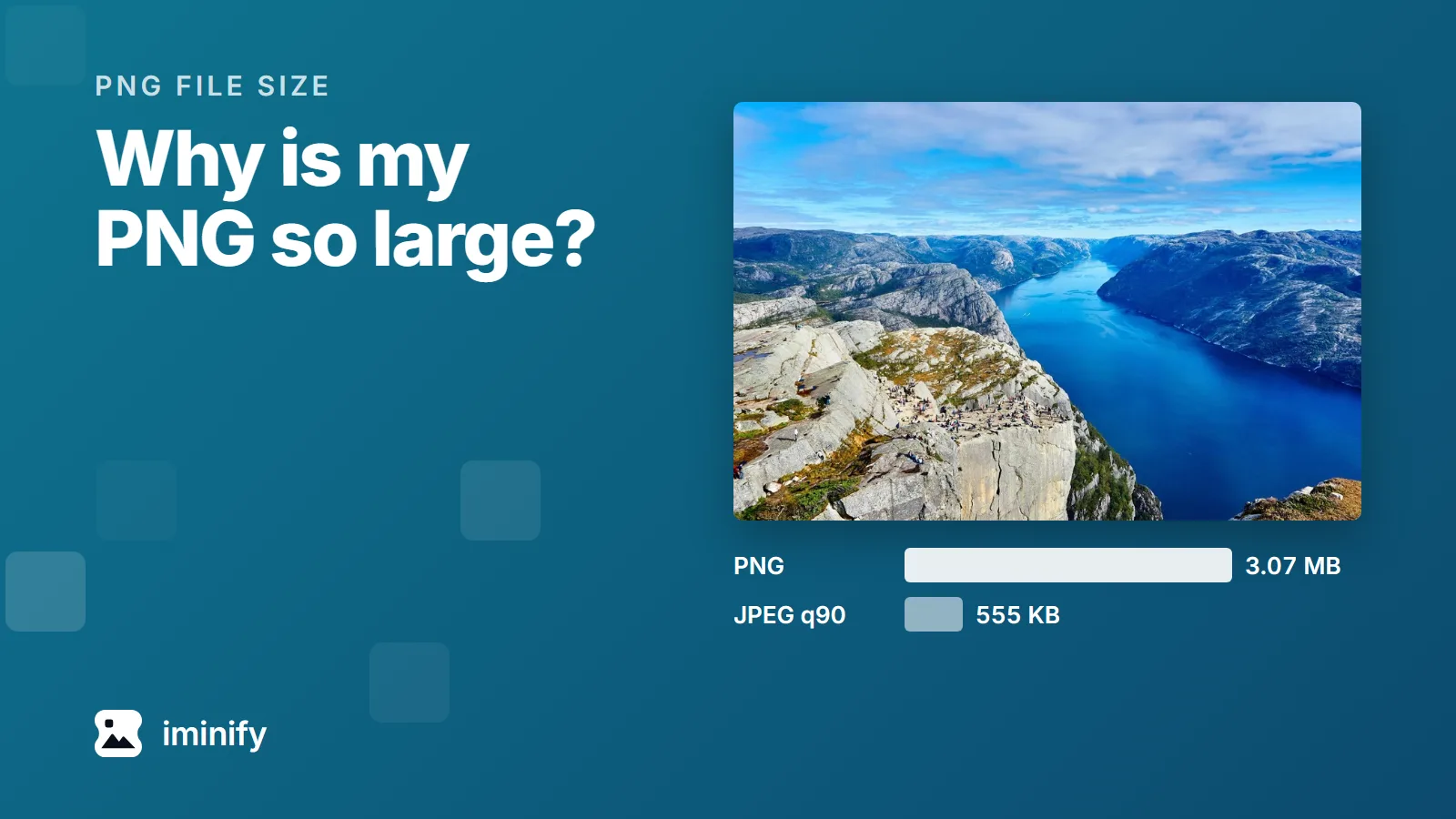
We took the fjord photograph from our test images, a 1,800 by 1,200 JPEG of 832 KB, and saved the same pixels as a PNG. It came to 3.34 MB at the default setting of Pillow, the Python imaging library. Through zopflipng, a slower lossless compressor, 3.07 MB. As a JPEG at quality 90 it's 555 KB, and it scores 84.22 on a perceptual scale where 80 means an average observer can't see the difference side by side.
A photograph was the most expensive of the four causes in the comparisons below. The four:
- It's a photograph.
- It has more pixels than it will be shown at.
- It stores more per pixel than the picture needs: 16 bits per colour channel, or millions of colours where 256 would do.
- The program that saved it didn't compress it very hard.
Each has its own fix, and the fix for one can be wrong for another. A JPEG rescues a photograph. Our desktop screenshot came out bigger as a JPEG than as a PNG through zopflipng.
Check the dimensions and bit depth first
On Windows, right-click the file, choose Properties and open the Details tab. Look for Dimensions and Bit depth. Bit depth there counts bits per pixel:
- 8 or less: a palette of up to 256 colours, or greyscale.
- 24: full colour.
- 32: full colour plus a transparency channel.
- 48 or 64: 16 bits per channel instead of the usual 8.
On a Mac, the Info button in Preview's toolbar opens an inspector with general information about the image. Apple's guide to it doesn't say whether it shows bit depth.
A photograph: convert it. Wider than it will ever be shown: resize it. 48 or 64: get it down to 8 bits per channel. A screenshot or graphic at 24 or 32: try a palette. A still PNG can also be repacked losslessly.
As a PNG, a photograph cost 5.7 to 9.3 times its JPEG
PNG is lossless, so it has to keep every pixel of a photograph exactly, grain and all. JPEG is allowed to change pixels. At quality 90, all six of our photographs scored above 84 on SSIMULACRA 2, measured against the PNG:
| Photo | PNG, through zopflipng | JPEG, quality 90 | Score |
|---|---|---|---|
| Fjord | 3.07 MB | 555 KB | 84.22 |
| Raspberries | 1.52 MB | 167 KB | 85.13 |
| Night skyline | 1.60 MB | 264 KB | 84.53 |
| Canoe | 1.67 MB | 207 KB | 84.90 |
| Cafe | 1.46 MB | 191 KB | 87.42 |
| Coffee | 423 KB | 65 KB | 84.83 |
Keeping the file a PNG and cutting it to a palette of 256 colours or fewer doesn't rescue a photograph. We ran the palette pass our default Smart level uses on a PNG by hand: the six came out between 214 KB and 990 KB, bigger than the JPEG every time, scoring between 69.40 and 77.90.
For a photo with no transparent areas, convert it to JPG: iminify.com, set to JPG. If it has transparency, JPG can't keep it, and WebP can. WebP at quality 90 landed close to the JPEG on the fjord: 563 KB, scoring 83.08, though the two encoders' quality numbers don't mean the same thing.
Resizing: a third of the width, about a quarter of the bytes
Our phone screenshot is 1,170 by 2,532 pixels. Through zopflipng, it's 698 KB. Resized to half its width it's 343 KB, and to a third, 179 KB.
A third of the width is a ninth of the pixels, but in bytes it came to about a quarter. The fjord at half its width, a quarter of the pixels, went from 3.07 MB to 906 KB.
So before anything else, resize to the size the picture will be shown at. Iminify resizes by pixels or by percentage, and our post on kilobyte budgets makes the case to serve the width you render at.
Bit depth and colour count: more per pixel than the picture needs
An ordinary PNG stores 8 bits for each colour channel. The format also allows 16, and our own app icon uses them: Windows reports its bit depth as 64. Through zopflipng, the 16-bit icon is 97 KB, and the same icon at 8 bits per channel is 47 KB. On a photograph whose extra precision is real, the gap is wider: a 1,200 by 800 fjord we built at 16 bits per channel for this test came to 4.75 MB, against 1.51 MB at 8.
Lossless compression can't take the extra bits away, because removing them changes the pixels. Our Lossless level keeps all 16: it returns that icon at 100 KB. Smart turns it into an 8-bit palette, 19 KB in our published showcase, the ten before-and-after samples on our home page. Iminify has no separate switch for going from 16 bits per channel to 8, so if you don't need them, choose 8 bits per channel when you export.
For screenshots, the palette is the other lever. Our desktop screenshot went from 180 KB through zopflipng to 87 KB as a palette PNG, scoring 89.87, a hair under the 90 the scale calls visually lossless. The social card went to 44 KB at 82.55 and the phone screenshot to 260 KB at 84.76. Those three files are, byte for byte, the Smart PNGs in our published showcase of 20 September 2026.
A palette is lossy, and unlike our JPEG and WebP output under 8 megapixels it isn't checked against a SSIMULACRA 2 target, so those scores are what these three files happened to get. It's what our PNG compressor does at Smart.
A JPEG was the wrong move for the desktop screenshot. At quality 80, 85 and 90 it came to 233 KB, 268 KB and 325 KB, every one bigger than the 180 KB lossless PNG, and every one scoring below 79.
The program that saved it didn't compress very hard
PNG compression is lossless, so how hard a program works at it changes the size and never the pixels. Our desktop screenshot arrived as a 303 KB PNG. Re-saved by Pillow at its fastest level it's 316 KB, at its default 239 KB, and through zopflipng, which Google describes as "very good, but slow", 180 KB. The phone screenshot and the social card each came out 27% smaller through zopflipng.
That repack is what our Lossless level does, without changing a pixel, unless the PNG carries a colour profile other than sRGB, such as Display P3, which gets converted to sRGB. In our published showcase it returned the desktop screenshot as that same 180 KB file. On full-colour files over 1.5 megapixels, such as the icon, it switches to a faster compressor, and on the phone screenshot that saved less: 745 KB, against zopflipng's 698 KB.
An empty transparency channel and metadata cost little on our files
A transparency channel that holds nothing, every pixel fully opaque, made the fjord's PNG 8.1% bigger at Pillow's default setting, and zopflipng dropped the channel by itself, so both versions ended at the same size. We didn't measure what the channel costs on a picture with real transparent areas; there it carries information and has to stay.
The four files that came to us as PNGs, both screenshots, the social card and the icon, held 161 bytes of metadata between them, all of it in the icon: non-image notes such as a colour description and text tags.
How we measured
Every file is from the test set in our first post, which lists each one with its author and licence. The fjord on the cover is by Alexey Topolyanskiy, on Unsplash.
We decoded the five JPEG photographs with Pillow 12.3.0, which also wrote the PNGs at levels 1, 6 and 9; its wheels compress with zlib-ng. The coffee shot starts as a PNG decoded from its WebP master. zopflipng, pngquant, cjpegli, cwebp and ssimulacra2 ran in the container that holds our production encoders. We ran zopflipng 1.0.3 at five iterations, and pngquant 2.18.0 at --speed 1 with the ranges our Smart level uses, 65-90 and then 75-100, keeping the smaller of the two and passing it through zopflipng. JPEGs came from cjpegli, jpegli at 031a0077f579, with 4:2:0 chroma for photographs and 4:4:4 for screenshots, and WebPs from cwebp 1.5.0 at -m 6 -pass 10. Scores are ssimulacra2 from libjxl v0.12.0 (a7a9c787341c), against the PNG. ImageMagick 7.1.2-12 (Q16 HDRI), in a container of its own, did the resizing and made the 16-bit fjord and the 8-bit copies.
Sizes are in the 1,024-based units Windows shows.