Topic

JPEG

29 posts on JPEG.

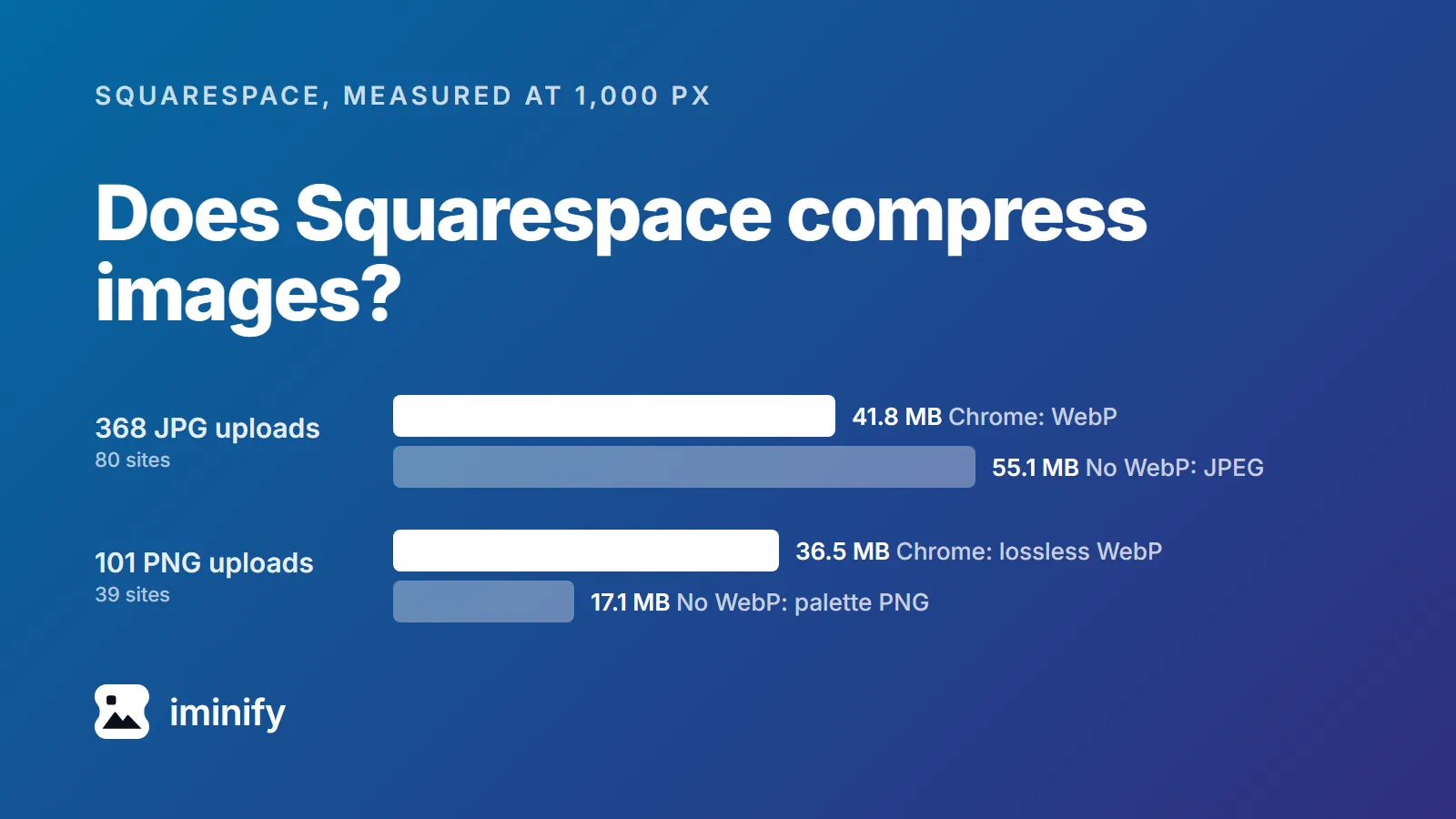
Bar chart of what Squarespace sent for 1,000-pixel copies: 368 JPG uploads came to 41.8 MB of WebP for Chrome against 55.1 MB of JPEG without WebP; 101 PNG uploads to 36.5 MB of lossless WebP against 17.1 MB of palette PNG.

Does Squarespace compress images? What it sent Chrome for 621 images

Yes. On 25 September 2026 we asked Squarespace's image server for 621 images from 85 Squarespace sites, once the way Chrome asks and once the way a browser without WebP support asks. On 84 of those sites Chrome got a WebP that Squarespace had made itself, for every JPG and PNG upload. Squarespace's resized JPEG copies were encoded at quality 85, its WebPs came closest to quality 85 of the settings we tried, and none of the 35 uploads wider than 2,500 pixels came back wider. At 1,000 pixels wide, Chrome's WebPs of JPG uploads weighed 24% less in total than the JPEG copies Squarespace sends browsers without WebP. Chrome's WebPs of PNG uploads were lossless and weighed more than twice as much as the PNG copies those browsers get, cut to 256 colours or fewer. GIFs went out as GIFs. What that means for your uploads is in the list near the end.
8 min read
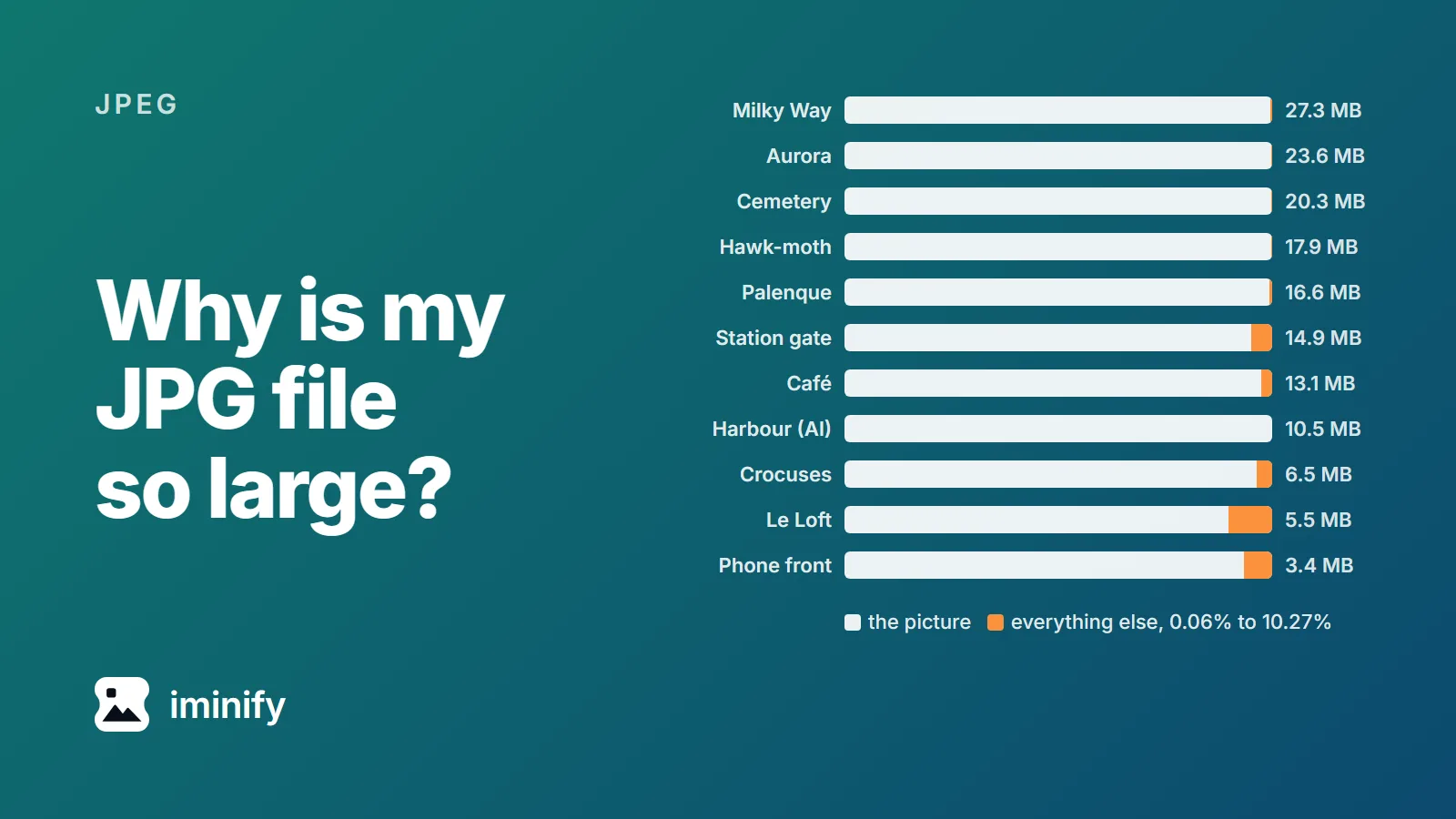
Bar chart of eleven JPEGs from 3.4 MB to 27.3 MB. In every bar the picture fills almost the whole length; everything else, 0.06 to 10.27 percent of each file, is a thin orange strip at the end.

Why is my JPG file so large? What 11 real JPEGs are made of

The biggest JPG we opened was 27.3 MB: a 20-megapixel photo of the Milky Way, exported from Adobe Camera Raw. The picture itself was 99.56 percent of the file. Everything else (editing notes, camera data, a thumbnail, a colour profile) came to 0.44 percent. Ten more JPEGs, from phones, cameras, photo editors and an AI image model, told the same story: the picture was between 89.7 and 99.9 percent of every file. So if your JPG is too big, it most likely has more pixels than you need, or it was saved at a quality setting at or near 100. The steps to fix both are at the end.

7 min read
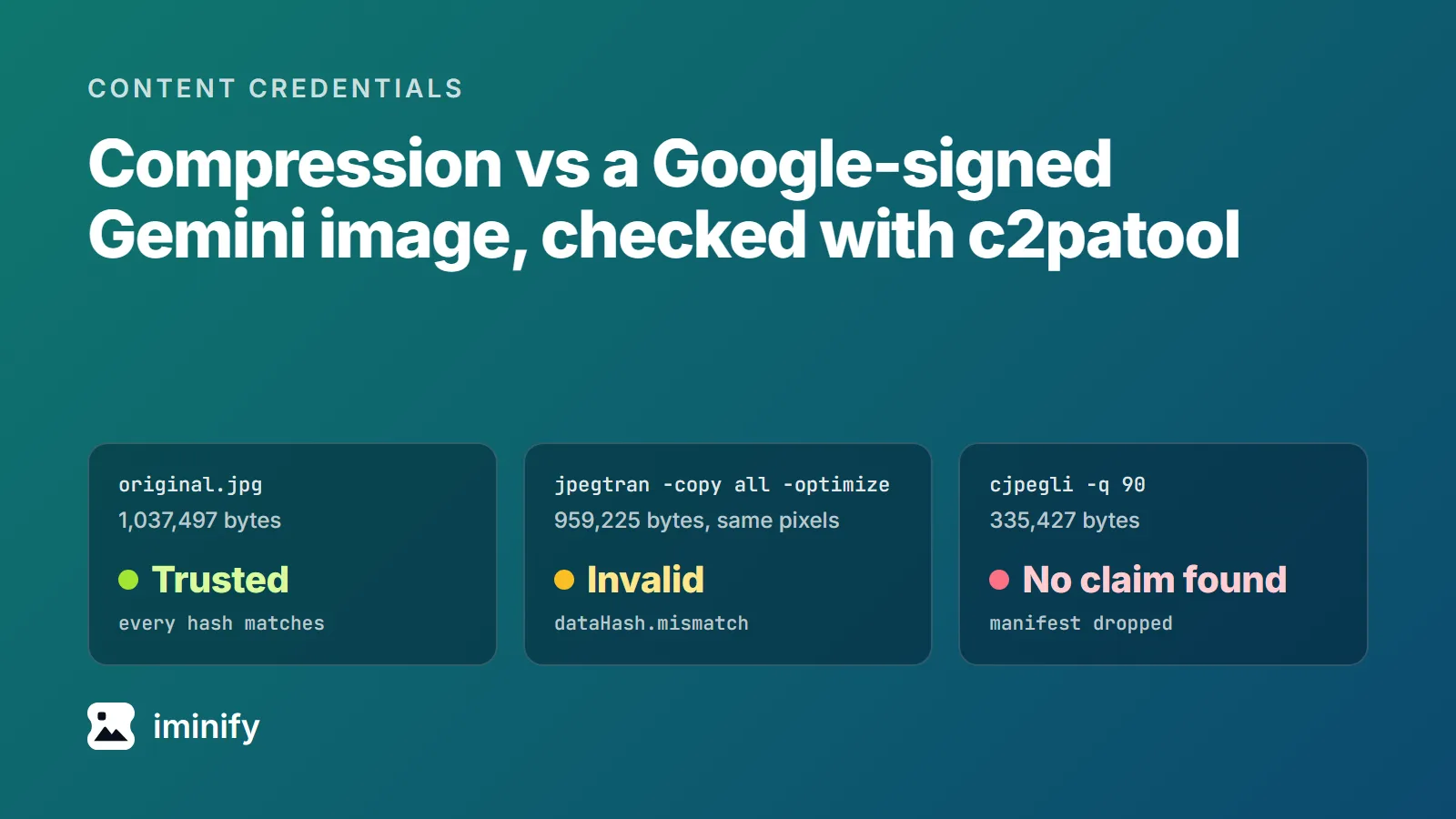
Three c2patool verdicts on a Google-signed Gemini JPEG: the 1,037,497-byte original is Trusted, a libjpeg-turbo jpegtran -copy all -optimize copy with the same pixels is Invalid (dataHash.mismatch), a cjpegli quality 90 copy has no claim.

Does compression remove Content Credentials? Two signed Gemini images through 13 tools

We took an image made by Nano Banana 2, one of Google's Gemini image models, and asked c2patool whether its Content Credentials hold. It answered "Trusted": a C2PA manifest signed by Google LLC, stating "Created by Google Generative AI.", with every hash matching. Then we ran that JPEG, and a PNG from the original Nano Banana, through 13 tools, WordPress 7.1.2 and Iminify among them, and asked again. Every file those tools wrote failed if it differed from its source by even a byte. Most tools dropped the manifest. Five kept a copy of it that no longer verified, in some cases without changing a single pixel. If a compressed file has to carry a working credential, something has to sign it again after the last byte changes, and that adds bytes of its own.

8 min read
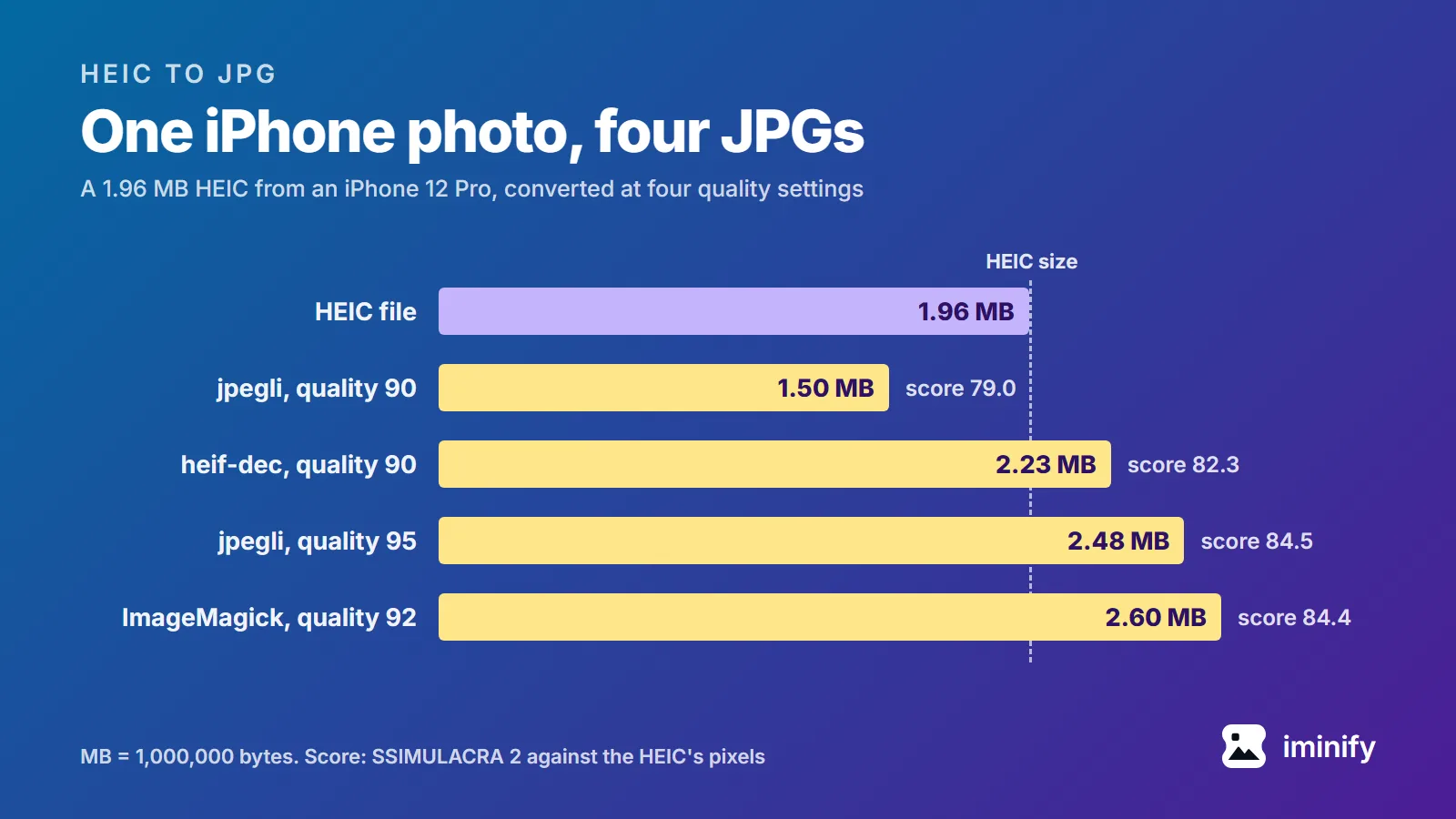
Bar chart: an iPhone 12 Pro HEIC of 1.96 MB and four JPGs made from it: jpegli at quality 90, 1.50 MB, score 79.0; heif-dec at 90, 2.23 MB, 82.3; jpegli at 95, 2.48 MB, 84.5; ImageMagick at 92, 2.60 MB, 84.4

Stop your iPhone saving HEIC, and convert the photos you already have

An iPhone saves its photos as HEIC unless you tell it not to. To make it save JPG instead, open Settings, tap Camera, tap Formats and choose Most Compatible. That changes new photos only: everything already on the phone stays HEIC, and those files need converting. We converted three HEIC photos taken on an iPhone 12 Pro to see what that costs. In the table below, the JPGs came out anywhere from 24% smaller to 61% bigger than their HEICs, and by default two of the three converters we tried kept the photo's GPS location.

6 min read
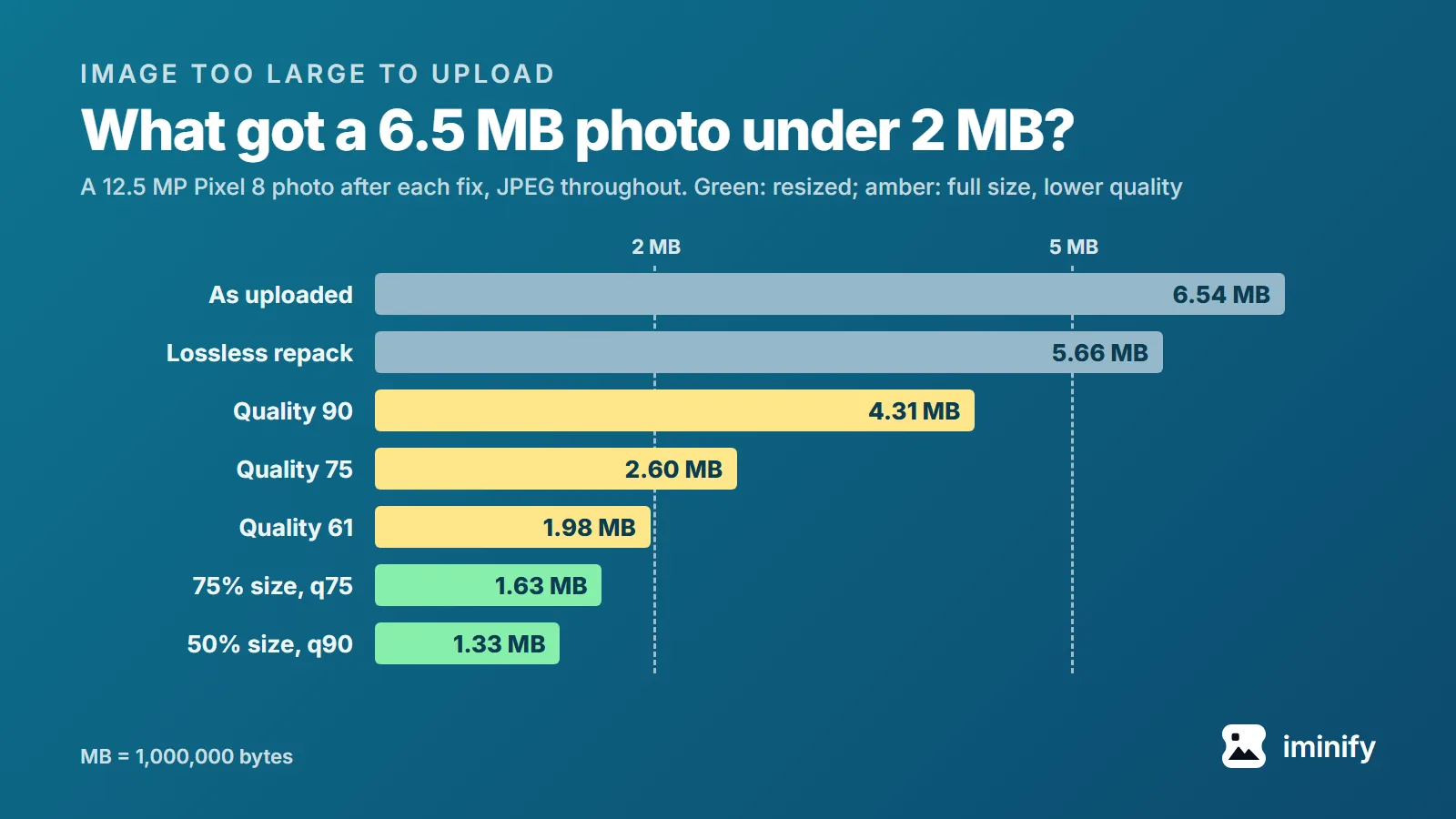
Bar chart of a 12.5 MP Pixel 8 photo after each fix, against 2 MB and 5 MB lines: 6.54 MB as uploaded, 5.66 lossless, 4.31 at quality 90, 2.60 at 75, 1.98 at 61, 1.63 at 75% size and quality 75, 1.33 at 50% size and quality 90.

Image too large to upload? Each fix, measured on a phone photo

A 12.5-megapixel photo from a Pixel 8 phone is 6.54 MB. Say a form caps uploads at 2 MB. Halving the photo's width and height got it to 1.33 MB at JPEG quality 90, with no compression damage you'd notice side by side. At full size, getting under 2 MB took quality 61, close to where the damage becomes perceptible. Changing its DPI didn't change its size by a single byte. So when an image is too large to upload, make it smaller in pixels before you squeeze the quality. Here's how, what each fix cost, and what changes for a 50-megapixel photo.

5 min read
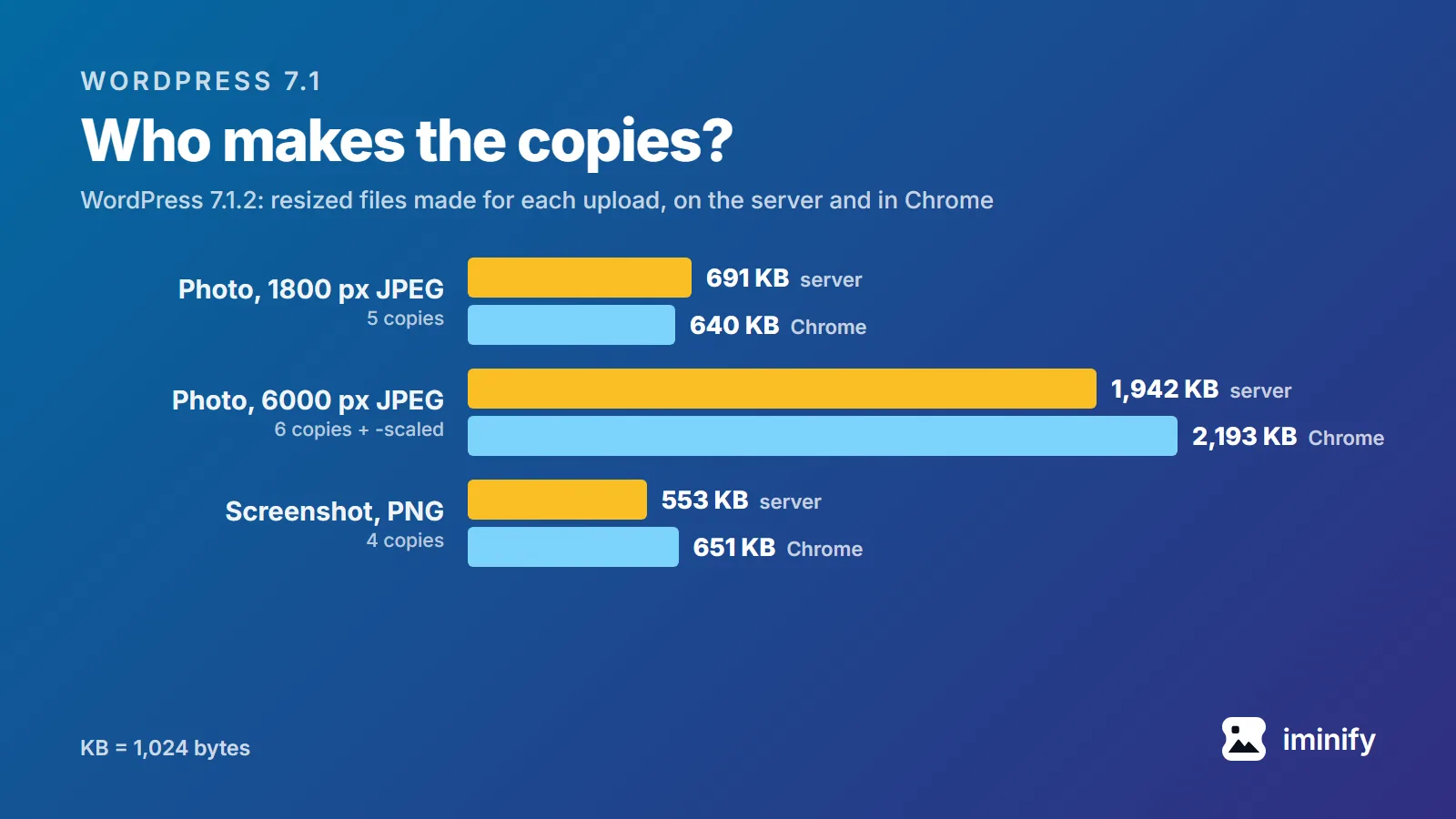
Bar chart of the resized files WordPress 7.1.2 made on the server and in Chrome: 691 and 640 KB for a 1800 px photo, 1,942 and 2,193 KB for its 6000 px version, 553 and 651 KB for a PNG screenshot.

Does WordPress compress images? What WordPress 7.1 does to your upload

We uploaded the same photo to a fresh WordPress 7.1.2 site twice, both times from Chrome. The file we sent, 832 KB, was stored byte for byte both times. From it WordPress made five resized copies at JPEG quality 82. Through Media > Add Media File those copies came to 691 KB. Through the Upload button on an Image block they came to 640 KB, because in 7.1 that button has the browser make the copies instead of the server. So does WordPress compress images automatically? Not the file you upload, which is stored byte for byte. It re-encodes the resized copies it makes, the JPEG ones at quality 82. In our test a phone and a standard laptop screen downloaded copies of this photo, but a 2x laptop screen got the untouched original, so compressing it is still your job. Since 7.1, which program makes the copies depends on the button you press and the browser you press it in.

8 min read
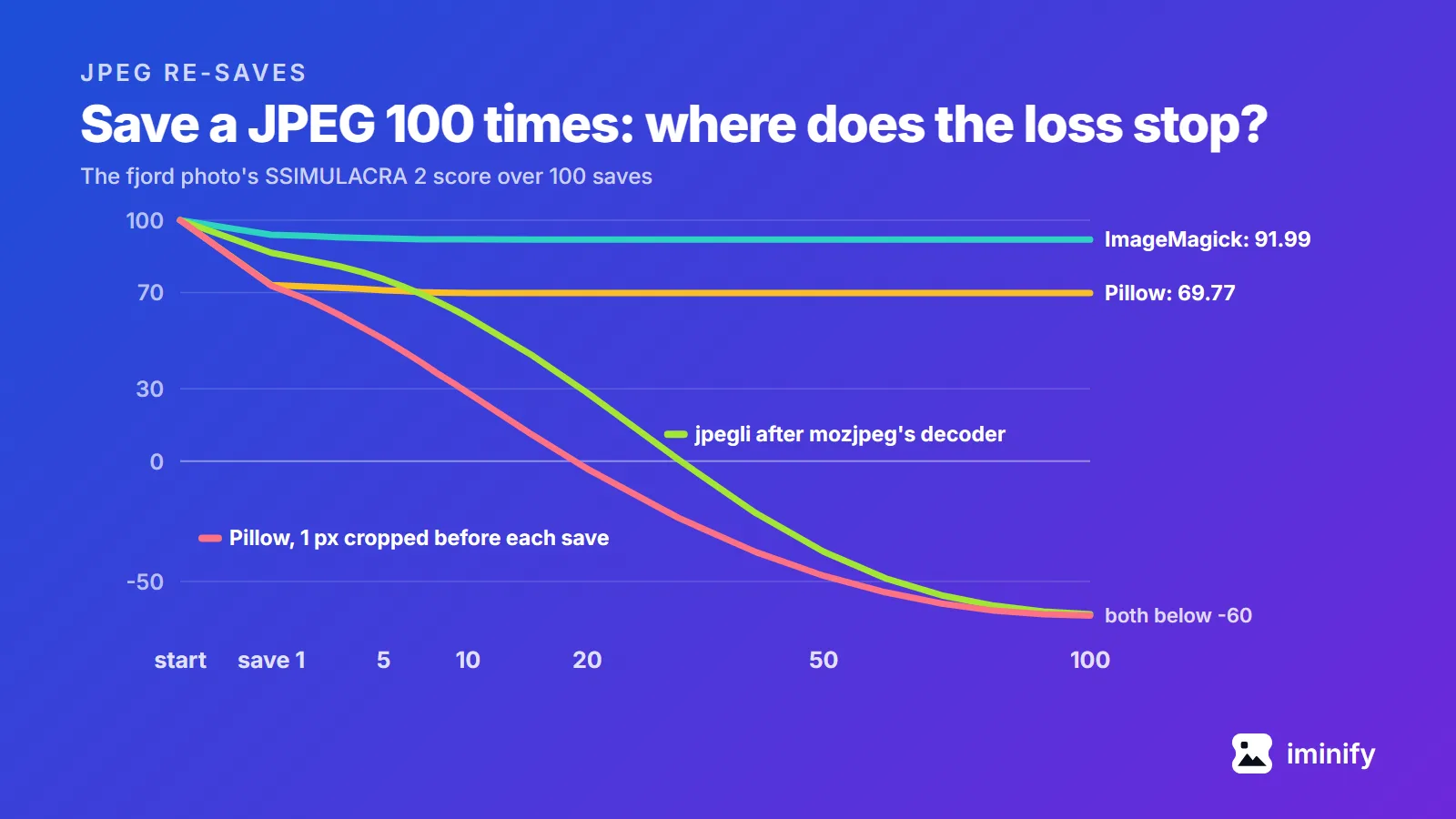
Line chart of the fjord photo's SSIMULACRA 2 score over 100 saves: ImageMagick levels off at 91.99 and Pillow at 69.77, while Pillow with 1 pixel cropped before each save and jpegli after mozjpeg's decoder both fall below -60.

Does a JPEG lose quality every time you save it? We saved five photos 100 times

Two of the tests that come up for this question disagree. Fstoppers opened a photo in Photoshop 2020 and saved it 99 times at maximum quality, and saw "significant quality loss after you save it six times". Improve Photography saved one 30 times at maximum quality, painting a pixel white each time, and found "no noticeable reduction in image quality. None." Both judged by eye. We opened a JPEG 100 times, copied it and zipped it, then saved five photos 100 times in a row in five programs and scored every save against the file we started from. The short answer: Opening, copying and zipping never changed a byte. In every same-setting run, no later save cost as much as the first. Saving again at the same setting, with no edits, then mostly stopped costing: at their defaults, by save 73, ImageMagick, Chrome and Pillow were writing identical files on all five photos, and mozjpeg on four. Cropping one pixel or turning the photo before each save kept eating it. One pairing of two JPEG libraries lost quality with every save: the jpegli encoder fed by mozjpeg's decoder. Iminify runs that pairing, so we tested our own tool too.

7 min read
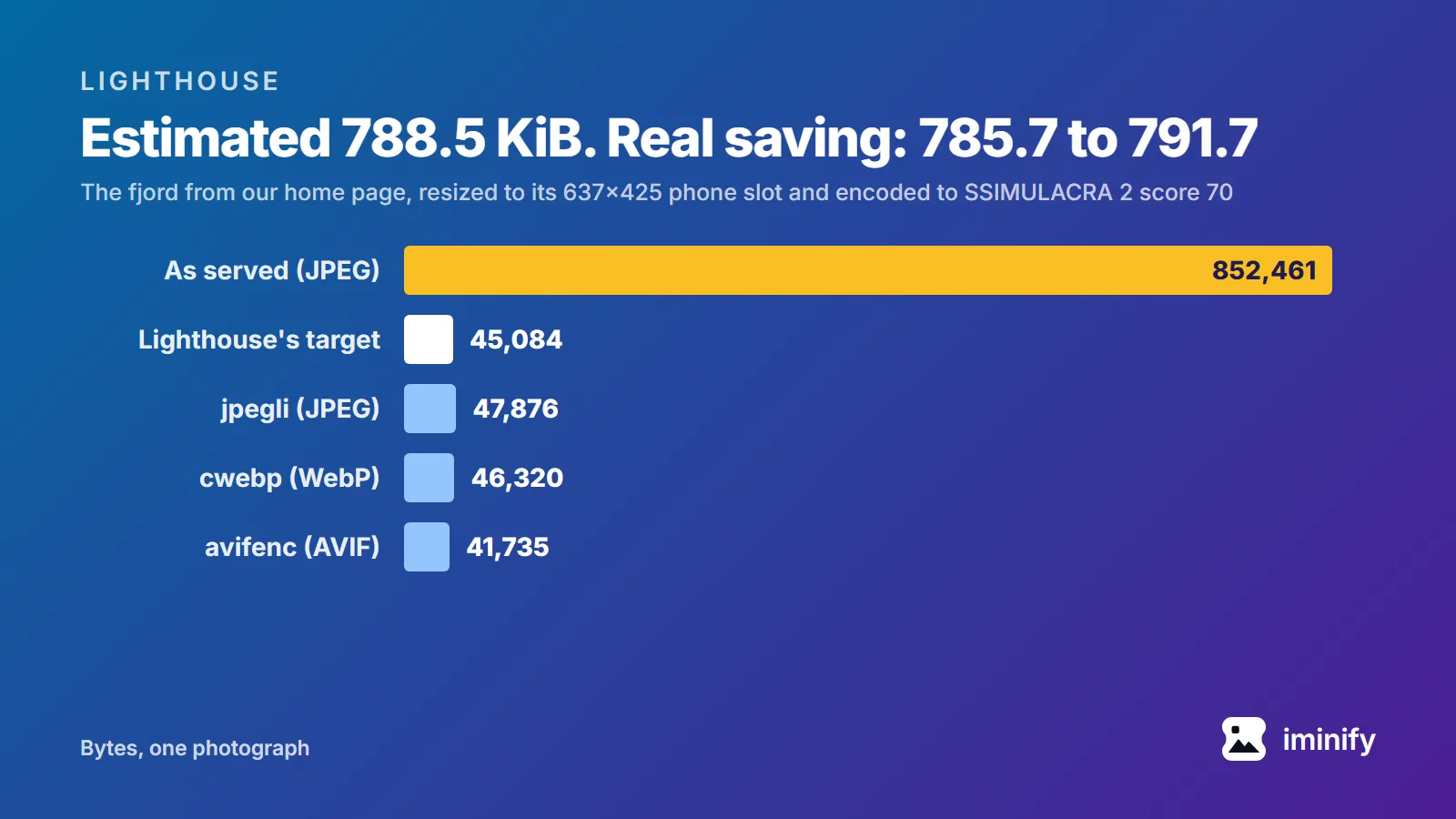
Bar chart of one photograph in bytes: 852,461 as served, against Lighthouse's target of 45,084 at its phone slot and encodes of 47,876 (JPEG), 46,320 (WebP) and 41,735 (AVIF).

Improve image delivery in Lighthouse: what it replaced and how it counts savings

PageSpeed Insights ran Lighthouse 13.5.0 on our home page on 22 September 2026 and flagged "Improve image delivery" in the mobile report: "Est savings of 1,300 KiB". All of it came from one photograph. The fjord shot in our before-and-after comparison is on the page twice, as the 832.5 KiB original and as our own compressed copy at 555.3 KiB. Both files are 1800x1200, and the report says they're displayed at 637x425. Three later runs that day said 1,359 KiB and 364x243. If your old notes say "Serve images in next-gen formats" or "Properly size images", this is where they went: Lighthouse 13 folded four image audits into this one insight. And its savings aren't measured: each figure is arithmetic on bytes and pixels. We reproduced every number in that insight, made the file it asks for, and traced one reason the same page gets two answers.

8 min read
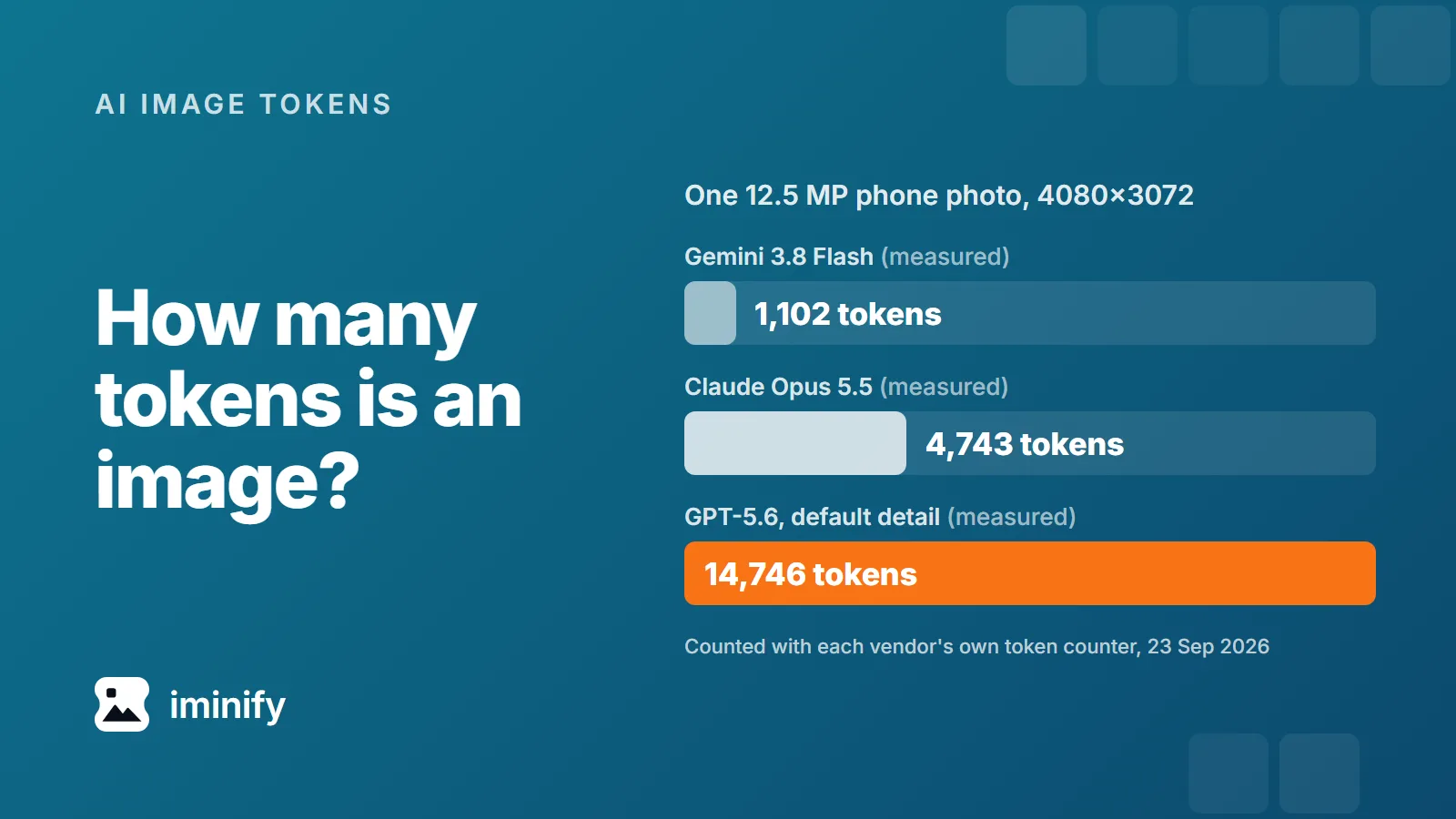
Bar chart for one 4080x3072 phone photo, measured with each vendor's token counter: 1,102 tokens on Gemini 3.8 Flash, 4,743 on Claude Opus 5.5 and 14,746 on GPT-5.6 at default detail.

How many tokens is an image? Claude, GPT and Gemini, measured on seven real files

A 12.5-megapixel phone photo counts 4,743 input tokens on Claude Opus 5.5, 1,102 on Gemini 3.8 Flash and 14,746 on GPT-5.6 at its default detail setting, over 13 times Gemini's count. We measured all three with the vendors' own token counters on 23 September 2026. And none of the three depends on how many bytes the file has. Claude counts pixels up to a cap, GPT-5.6 counts every pixel unless you ask for less, and Gemini 3 barely looks at the size.

7 min read
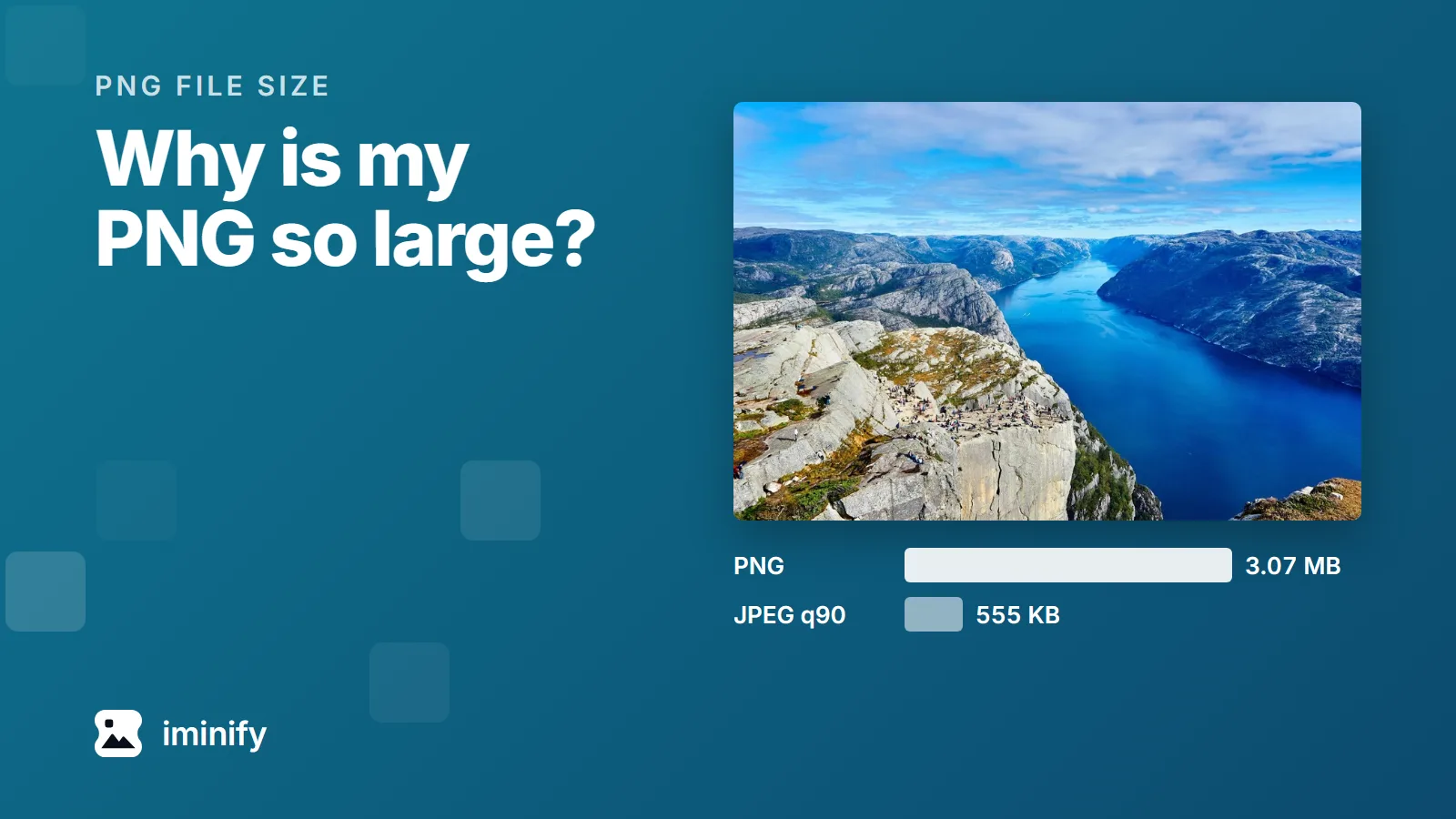
The fjord photograph from our test set above two bars: 3.07 MB as a PNG and 555 KB as a JPEG at quality 90.

Why is my PNG file so large? Four causes, measured

We took the fjord photograph from our test images, a 1,800 by 1,200 JPEG of 832 KB, and saved the same pixels as a PNG. It came to 3.34 MB at the default setting of Pillow, the Python imaging library. Through zopflipng, a slower lossless compressor, 3.07 MB. As a JPEG at quality 90 it's 555 KB, and it scores 84.22 on a perceptual scale where 80 means an average observer can't see the difference side by side. A photograph was the most expensive of the four causes in the comparisons below. The four: It's a photograph. It has more pixels than it will be shown at. It stores more per pixel than the picture needs: 16 bits per colour channel, or millions of colours where 256 would do. The program that saved it didn't compress it very hard. Each has its own fix, and the fix for one can be wrong for another. A JPEG rescues a photograph. Our desktop screenshot came out bigger as a JPEG than as a PNG through zopflipng.

7 min read
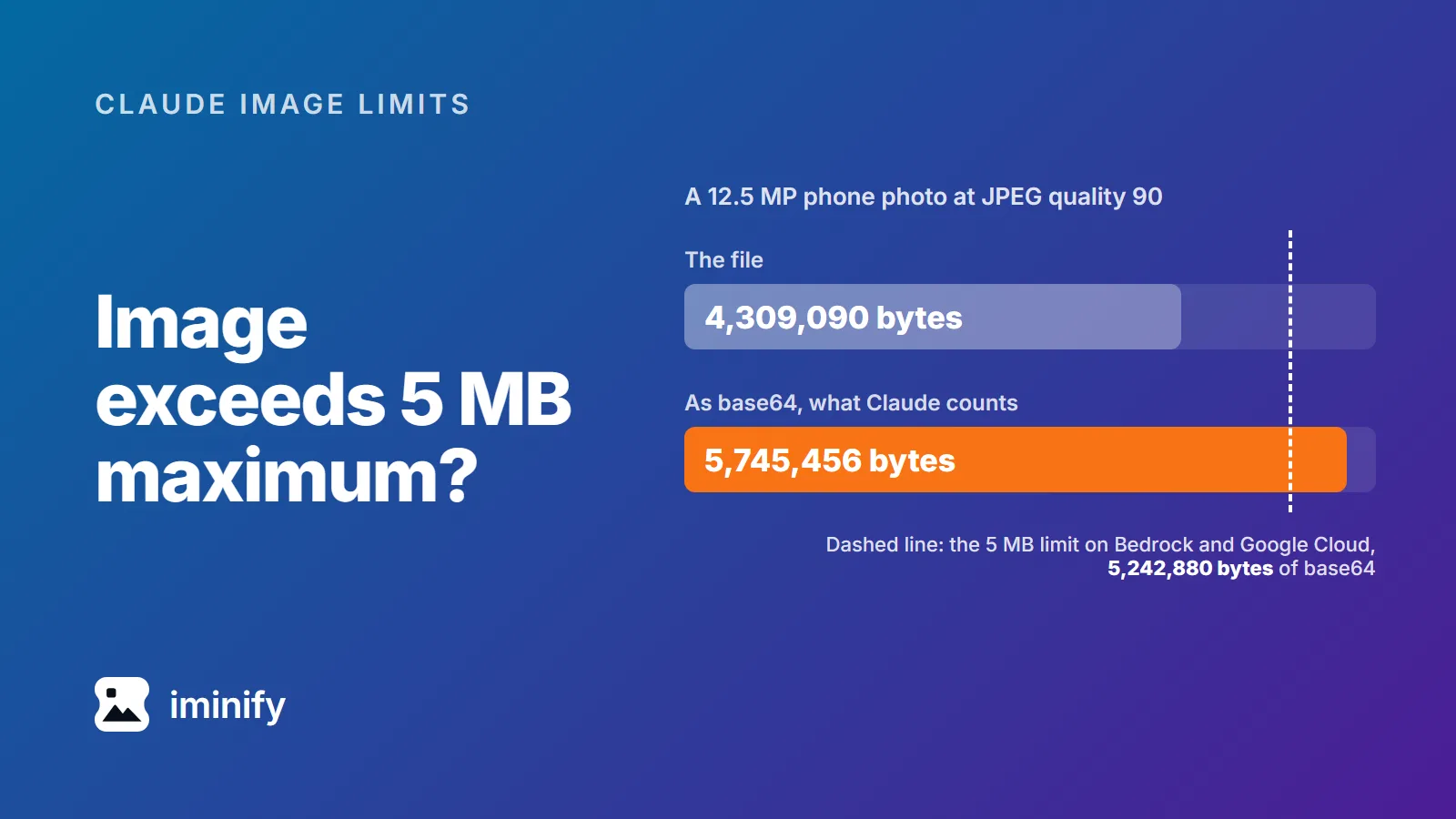
Bar chart: a 12.5 MP phone photo at JPEG quality 90 is 4,309,090 bytes as a file and 5,745,456 bytes as base64, past a dashed line at the 5,242,880-byte limit on Bedrock and Google Cloud.

Image exceeds 5 MB maximum? Claude counts the base64, not your file

Our 12.5-megapixel test photo, re-saved with jpegli at quality 90, is 4,309,090 bytes. That's under 5 MB, and it's still too big for Claude on Amazon Bedrock or Google Cloud. Anthropic's limit there is "5 MB (base64-encoded)", and base64 turns those 4,309,090 bytes into 5,745,456. The error compares the encoded size with 5,242,880 bytes, as in this one from a Claude Code issue: image exceeds 5 MB maximum: 5281812 bytes > 5242880 bytes. So the ceiling is 3,932,160 bytes of actual file on Bedrock and Google Cloud, and roughly 7.5 MB on the direct Claude API, whose limit is 10 MB. Separately, no side may pass 8000 pixels, or 2000 once a request carries more than 20 images. For photos, one step clears all of it: resize to 2000 pixels on the long edge and save it as JPEG.

9 min read
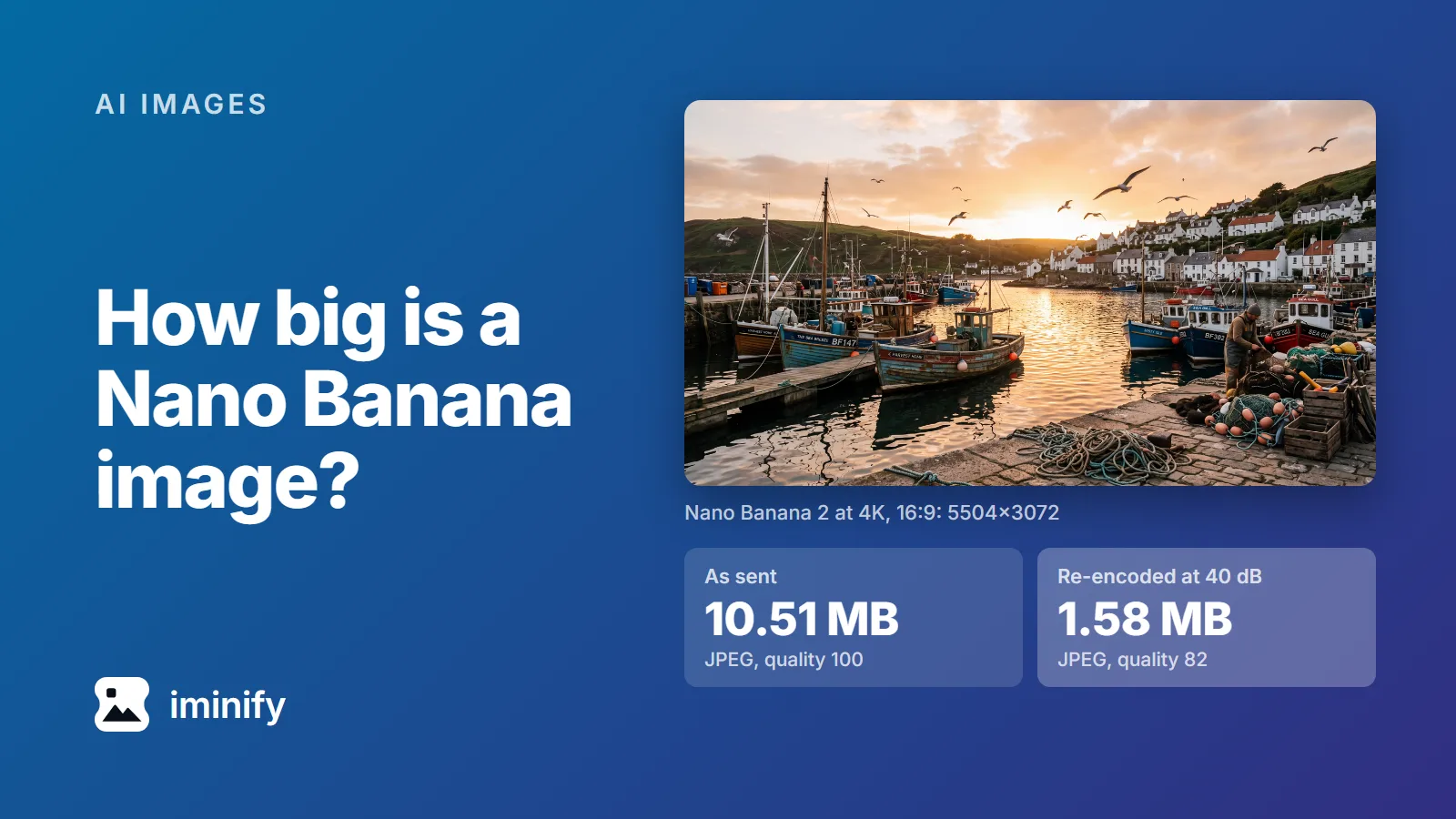
The harbour picture Nano Banana 2 generated at 4K, 5504x3072: 10.51 MB as sent, a quality-100 JPEG, and 1.58 MB re-encoded as a quality-82 JPEG holding 40 dB.

How big is a Nano Banana image? 52 files measured, from 512 px to 4K

We asked Nano Banana 2 for a 4K, 16:9 picture of a fishing harbour through the Gemini API on 23 September 2026. It came back as a 5504x3072 JPEG of 10.51 MB. The same request again gave 11.10 MB. Both files were saved at JPEG quality 100, the top of the scale. So, how big is a Nano Banana image? From Nano Banana 2 or Pro, a detailed picture is roughly 1 MB at 1K, 4 MB at 2K and 10.45 to 12.13 MB at 4K, and a flat illustration less. The original Nano Banana sends a PNG instead, about 2.1 MB for the same prompt at 1024x1024. Here are the 52 images of our test set, from all four Nano Banana models, and what five of them shrink to.

9 min read

Try it on your own images

Drop a photograph in, pick Smart, and compare the result with the original before you download. Free, no account needed.